 TrapProof Training
All guides › Drivers
Completing a Manifest on Your Phone
What You Will Learn
By the end you will be able to:
- find today's stops,
- fill in a manifest at the trap: gallons, before and after photos, the manager's name and signature,
- know what to do when something is missing.
Before You Start
- Open portal.trapproof.app in your phone's browser and sign in. You can add it to your home screen so it opens like an app.
- Allow camera and location when the phone asks. The manifest records where you were.
- In the demo, choose Hauler on demo.trapproof.app.
How It Fits Together
A manifest is the proof of one pump-out: this trap, this date, this many gallons, by this licensed hauler. When you sign it off, TrapProof locks it with a fingerprint. Anyone holding a copy can later check that nothing changed. The restaurant and the city see the manifest; the platform operator does not.
Step by Step
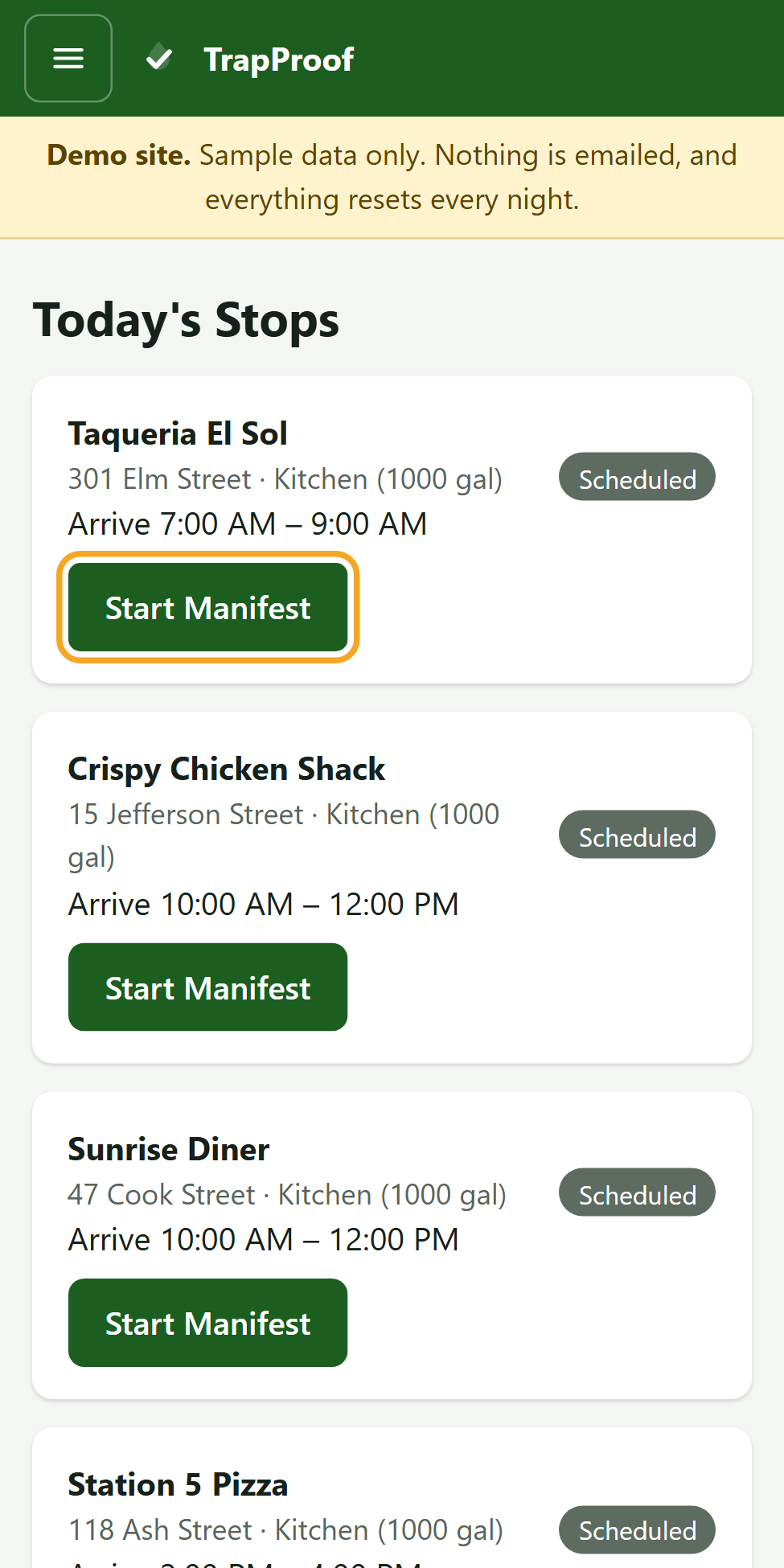
1. Open Today's Stops
- After signing in you land on Today's Stops.
- Each card shows the restaurant, address, trap and size, your arrival window and a status such as Scheduled.
- A yellow note on a card means the restaurant has said the trap is not reachable at that time.
2. Start the Manifest at the Trap
- When you are at the trap, press Start Manifest on that stop.
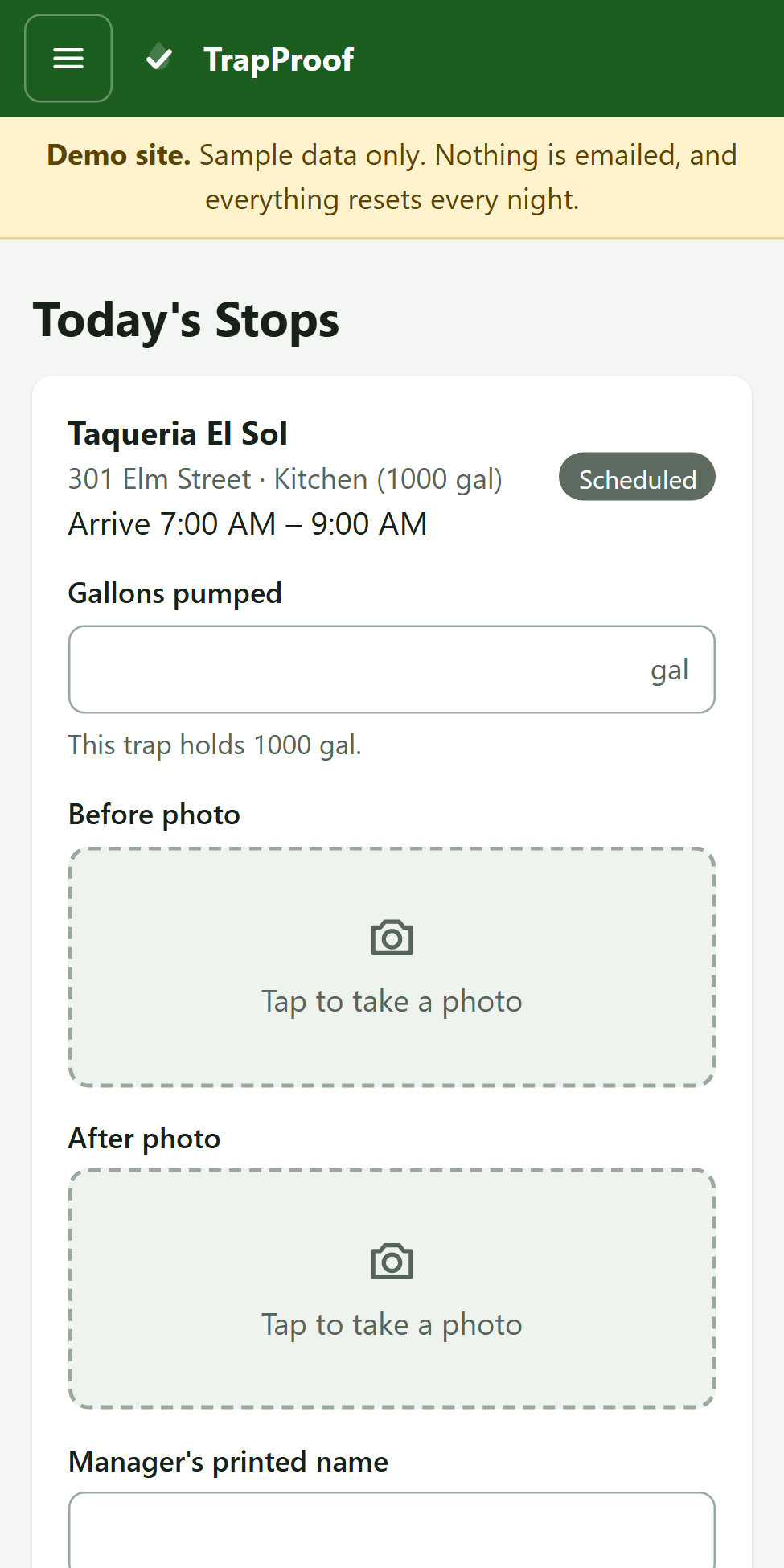
- The form opens inside the card. At the top, Gallons pumped shows how much the trap holds as a hint.
- Enter the gallons you pumped.
3. Take the Photos
- Press Before photo and take a picture of the trap before you pump.
- After pumping, press After photo and take a picture of the finished trap.
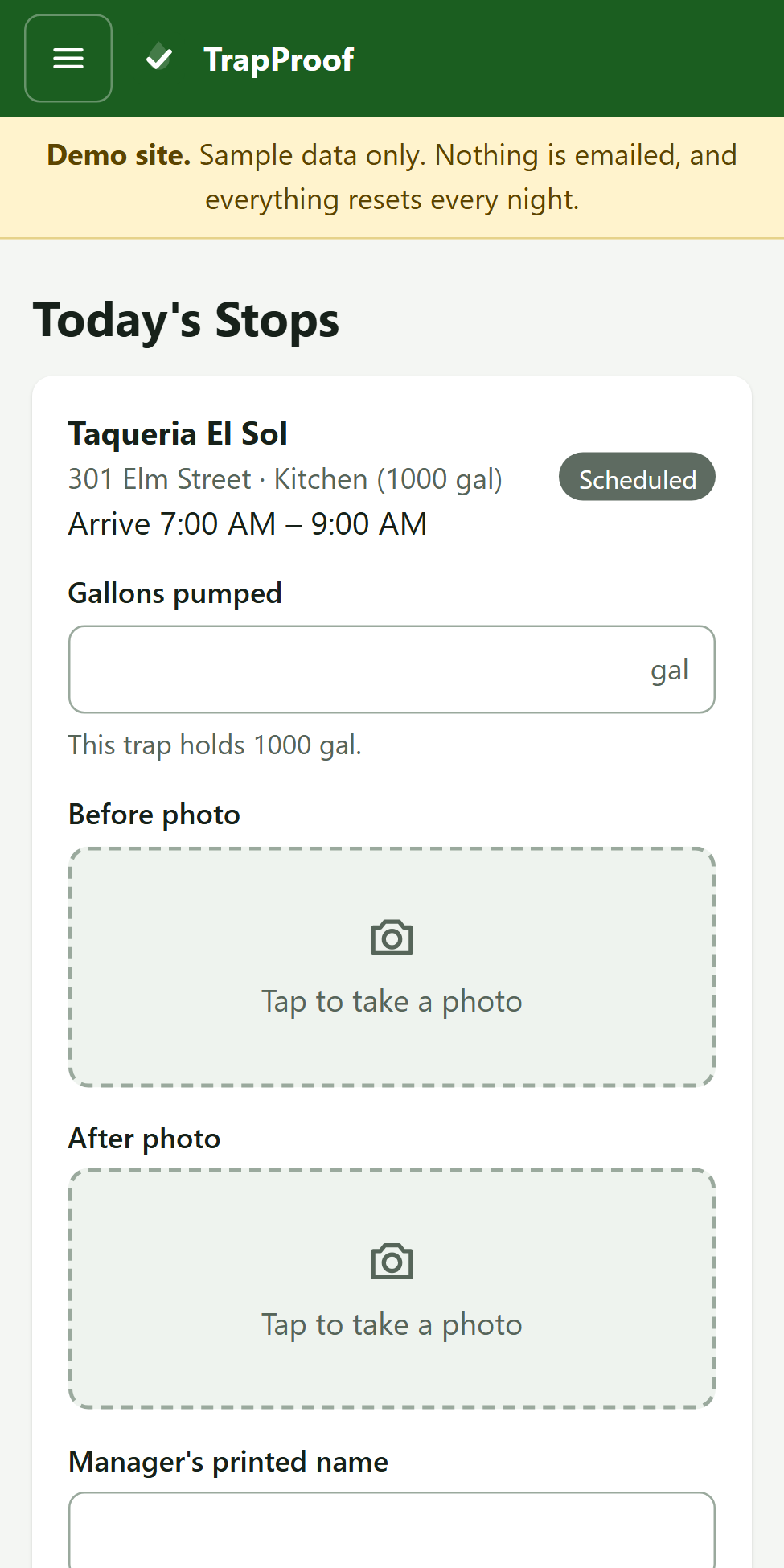
Why this matters: The two photos are part of the proof. Without both, the manifest cannot be completed.
4. Get the Signature
- Type the Manager's printed name.
- Hand the phone to the manager and ask them to sign in the box with a finger.
- If they make a mistake, press Clear Signature and sign again.
- Add Notes if something needs saying. They are optional.
5. Sign and Complete
- Press Sign & Complete Manifest.
- The stop changes to Completed and shows the gallons pumped.
- The restaurant is emailed a receipt with a link to the manifest.
Practice
- In the demo, press Start Manifest on the first stop.
- Enter 850 gallons, add both photos (the camera is simulated in the demo), type a name and sign.
- Press Sign & Complete Manifest.
You did it right if the stop shows Completed and "Pumped 850 gal".
Quick Reference
| You need | Remember |
|---|---|
| Gallons | Whole gallons pumped |
| Two photos | Before and after, both required |
| Manager's name and signature | Both required |
| Location | Allow it, or the stamp is missing |
When Something Goes Wrong
| What you see | Why | What to do |
|---|---|---|
| The button will not complete | A photo, name or signature is missing | Check each box is filled |
| No Start Manifest button | The stop is already completed | Open the manifest from the restaurant's receipt |
| The camera does not open | Camera permission is off | Allow the camera for the site in your phone's settings |
| You are asked to sign in again | Your session expired | Sign in again; nothing you finished is lost |
What Next
Scheduling Pump-Outs to see how your stops get booked.