 TrapProof Training
All guides › Haulers
Scheduling Pump-Outs
What You Will Learn
By the end you will be able to:
- read your schedule by day, week and month,
- book a visit for a trap that needs one, with an arrival window,
- move or cancel a visit,
- answer a restaurant's request for a pump-out,
- see your whole list of traps and what each needs.
Before You Start
- Sign in as any hauler user. In the demo choose Hauler.
- Traps are assigned to you by a city (or chosen by a restaurant). You never have to create visits for them one at a time: TrapProof books the next visit for you.
How It Fits Together
TrapProof looks at every trap assigned to you. A trap's next due date is its last completed pump-out plus its pumping interval. About a week before it is due (or straight away if it is already overdue or has never been pumped) it books a visit. You then add the truck, driver and arrival window. If you cancel a visit, TrapProof leaves that trap alone for 7 days.
Step by Step
1. Open the Schedule
- In the menu, open Schedule.
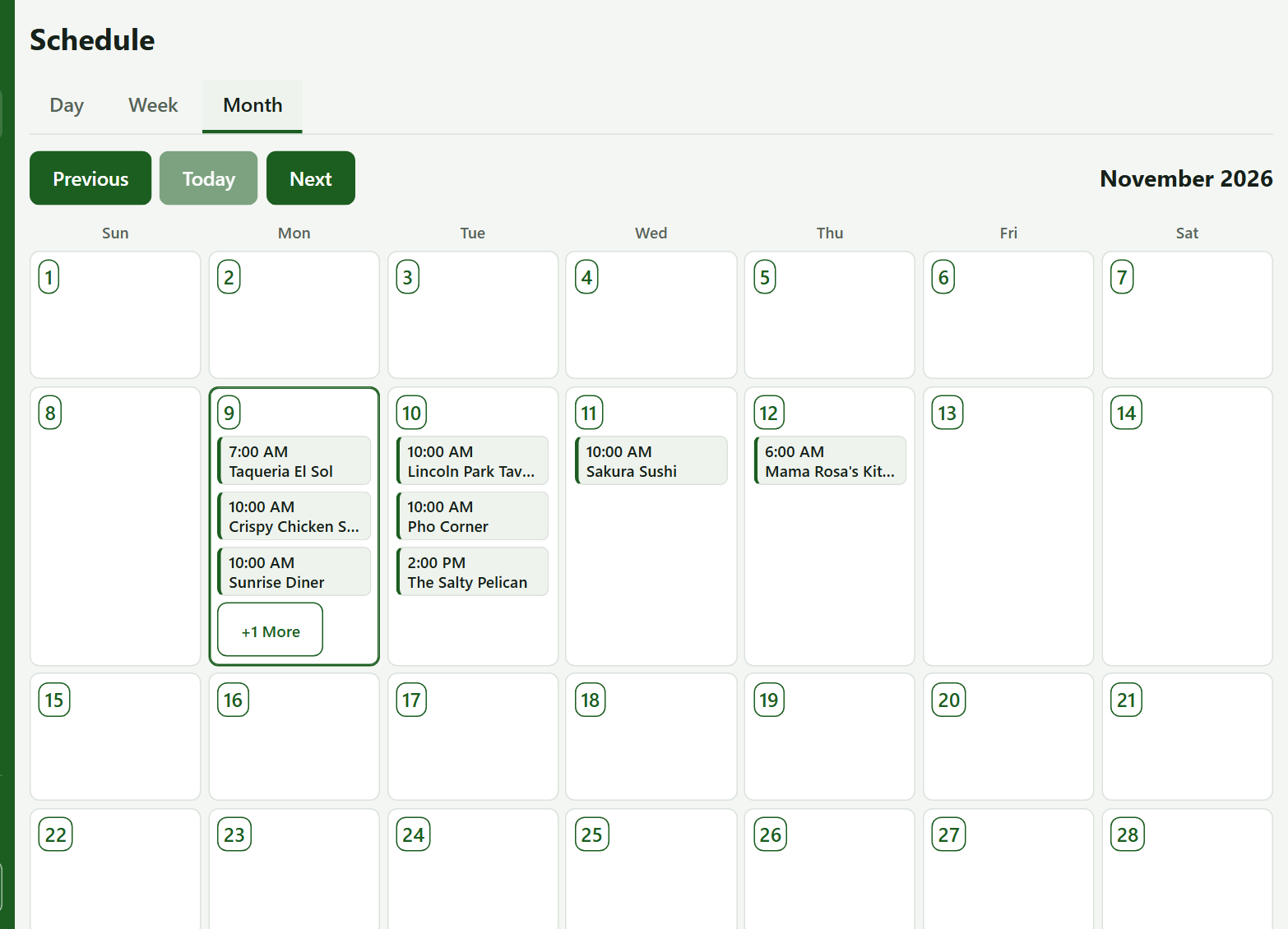
- Choose Day, Week or Month. TrapProof remembers your choice.
- Use Previous, Today and Next to move through time.
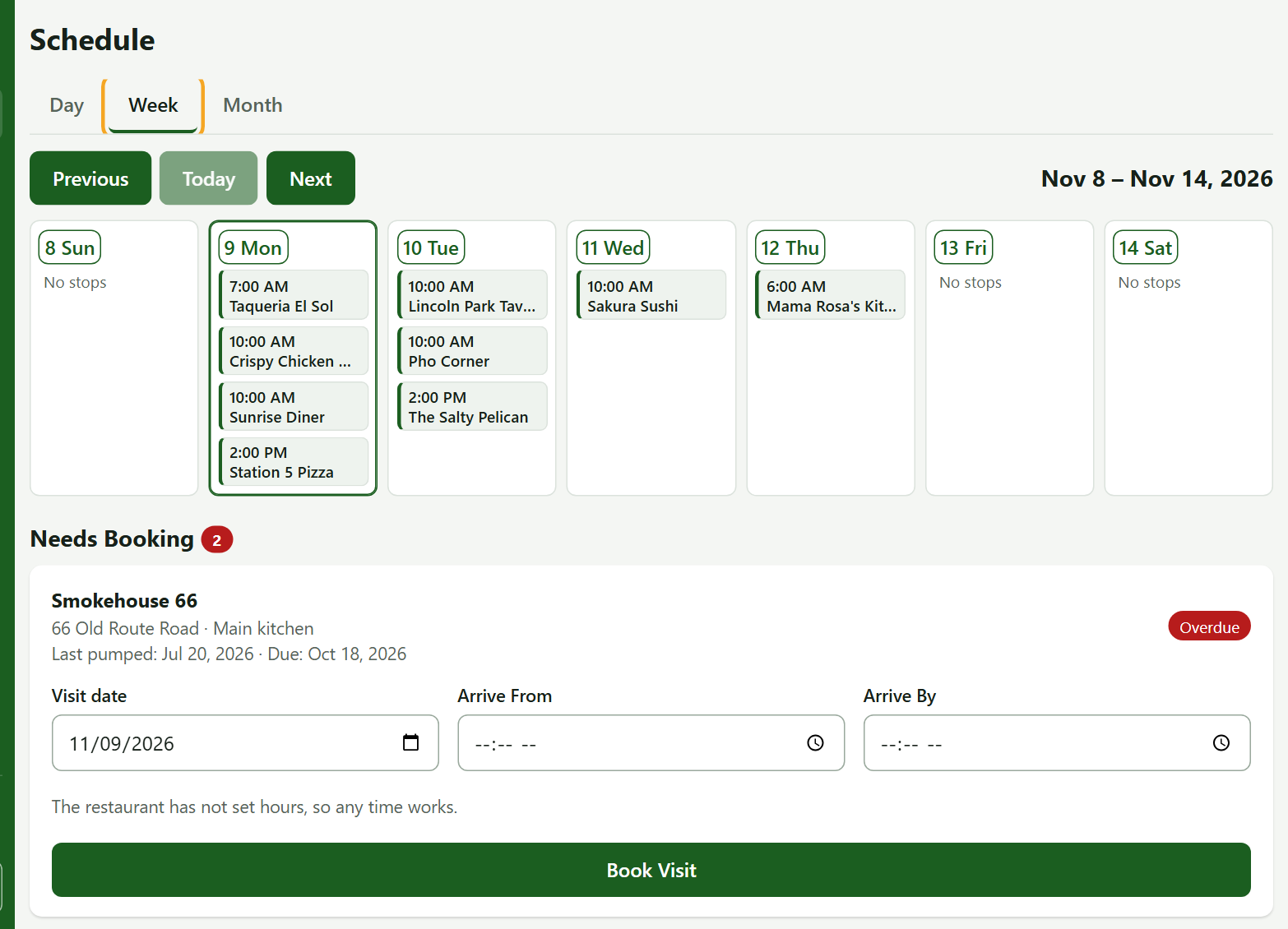
In the week and month views each stop is a small block with its time and restaurant. Pressing a block opens that stop for editing; pressing a date opens that day.
2. Edit a Visit
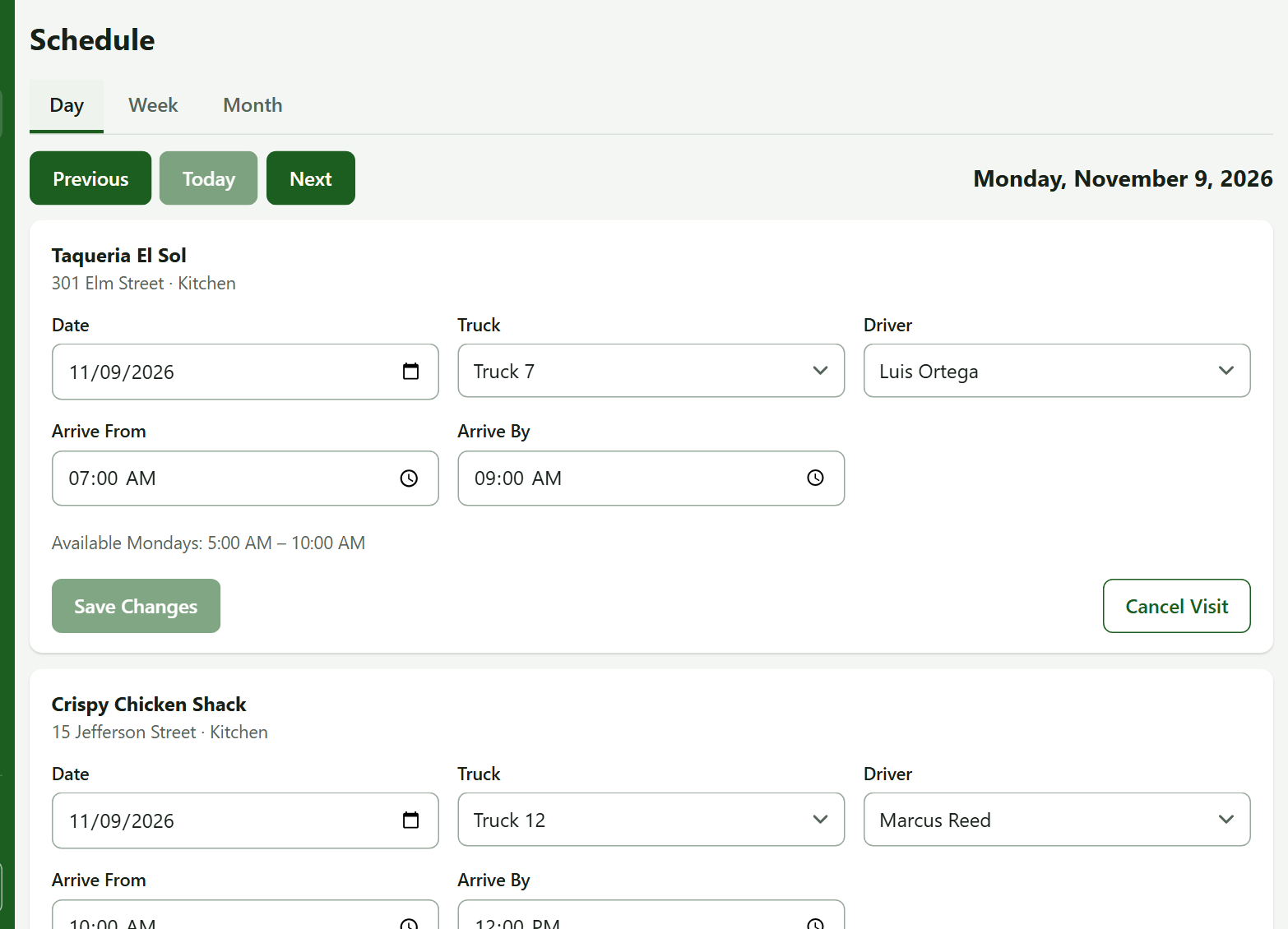
- Press a stop.
- Change the Date, choose a Truck and Driver, and optionally an arrival window: Arrive From and Arrive By (give both or neither).
- Press Save Changes. The restaurant is emailed that the visit moved.
Tip: If the restaurant has told TrapProof when its trap can be reached, an amber edge on a stop means your date or window is outside those hours. It is advice only: you can still book it.
3. Book a Trap That Needs a Visit
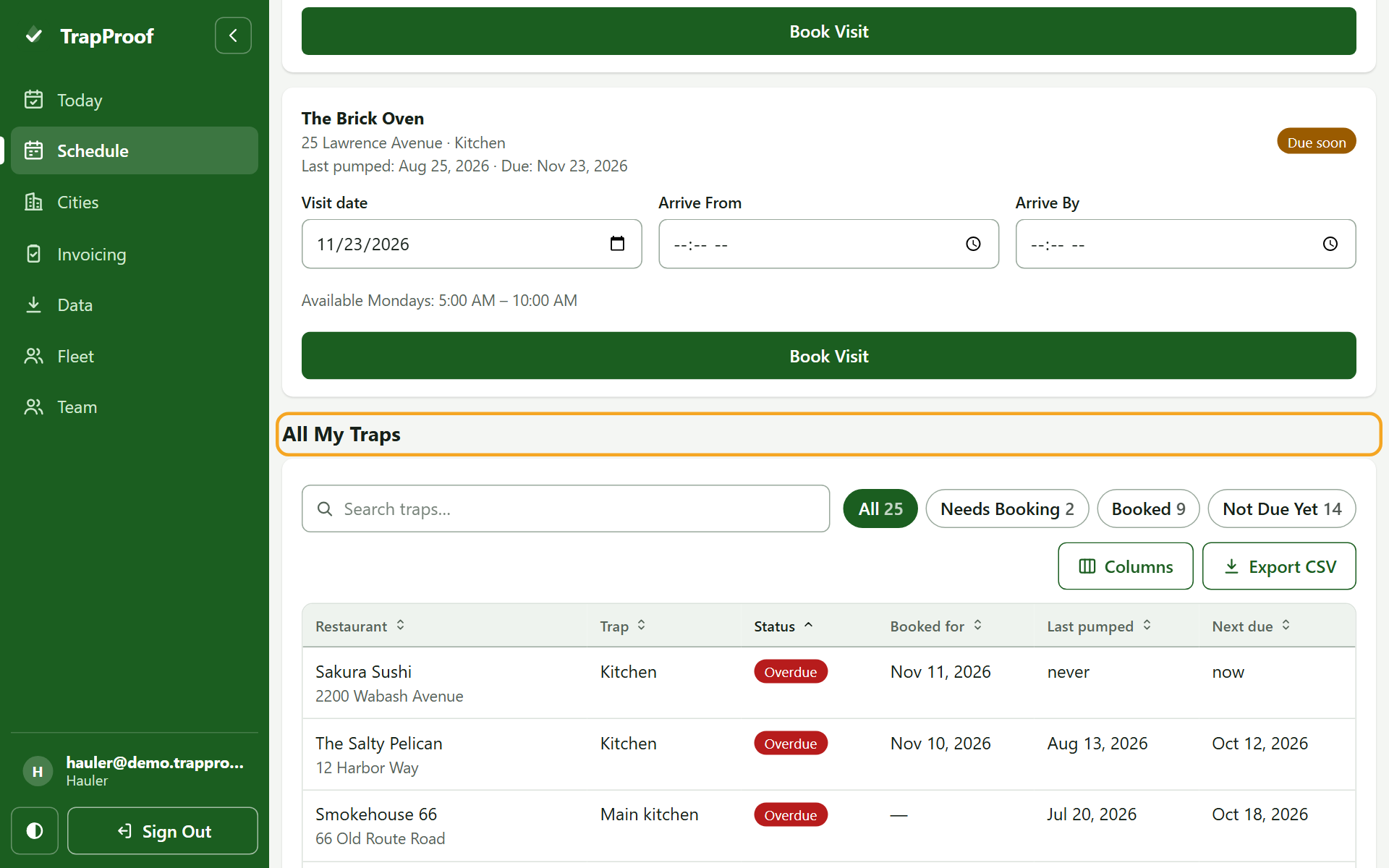
- Scroll to Needs Booking. Each card shows the restaurant, when it was last pumped, when it is due and a status such as Overdue or Due soon.
- Choose the Visit date and, if you like, Arrive From and Arrive By. Under the fields TrapProof tells you the restaurant's available hours, or that any time works.
- Press Book Visit.
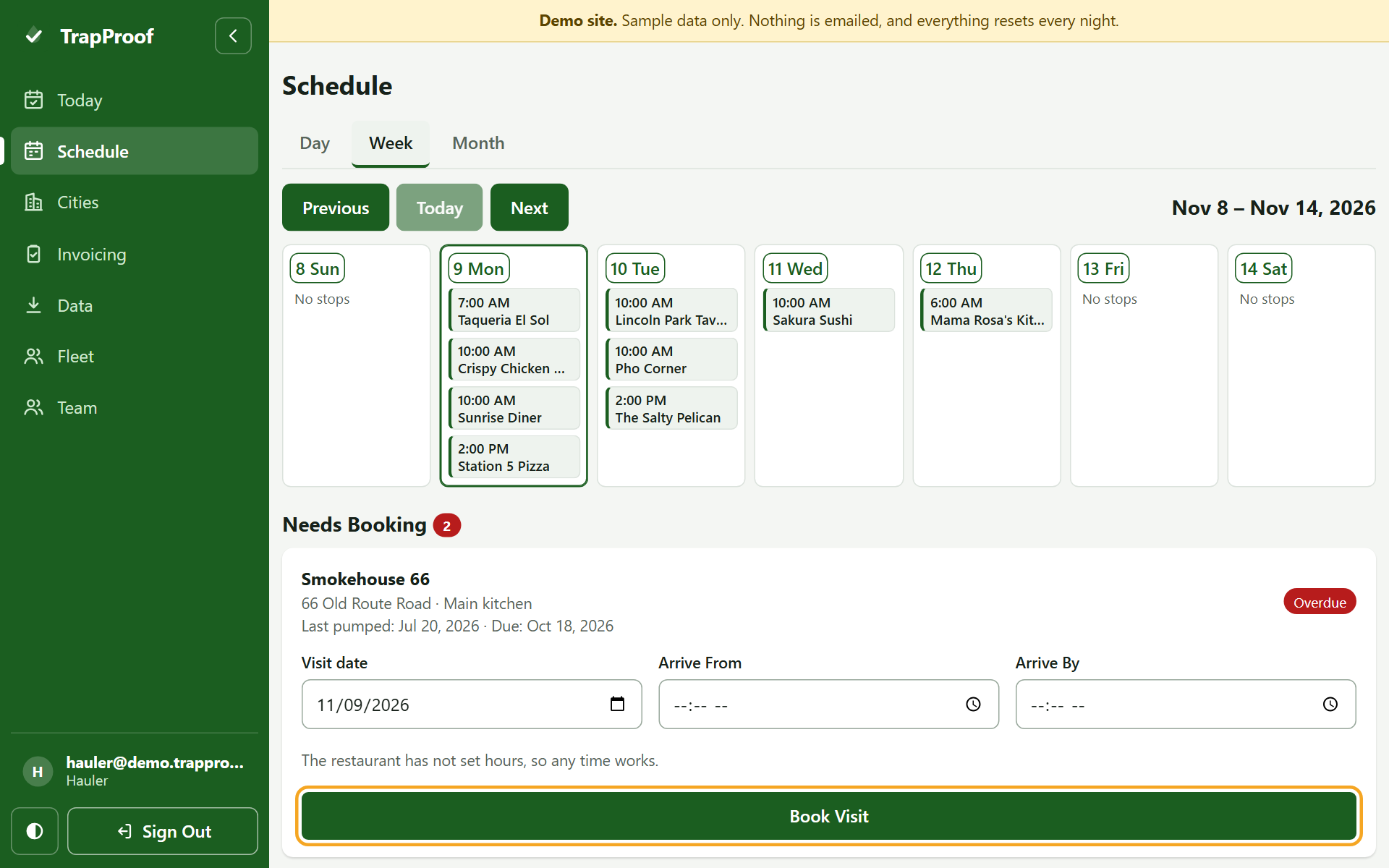
The restaurant is emailed that a visit is booked, and again the day before.
4. Answer Requests From Restaurants
When a restaurant asks for service outside the schedule, a Requests From Restaurants section appears above Needs Booking. An Urgent badge means the restaurant reported an overflow.
- Book Visit (or Move Visit if one is already booked) answers the request and closes it.
- Decline asks for a reason, which the restaurant is emailed.
5. Check Everything Under All My Traps
Below Needs Booking, All My Traps lists every trap assigned to you with its status, booked date, last pump and next due date. Use the filters (Needs Booking, Booked, Not Due Yet), search, and Export CSV.
Practice
- Open Week view and find a day with three or more stops.
- Press one stop, give it an Arrive From of 9:00 AM and an Arrive By of 11:00 AM, and press Save Changes.
- Under Needs Booking, book the first card for today.
You did it right if the stop shows its new time in the week view and the card disappears from Needs Booking.
Quick Reference
| To do this | Go to | Remember |
|---|---|---|
| Change view | Schedule tabs | Day, Week, Month |
| Book a due trap | Needs Booking | Window needs both times |
| Answer a restaurant | Requests From Restaurants | Decline needs a reason |
| Cancel a visit | Open the stop | The trap is left alone for 7 days |
When Something Goes Wrong
| What you see | Why | What to do |
|---|---|---|
| A message that booking is blocked | Your account is read-only from billing | Open Billing and fix the payment |
| A trap you expect is missing | It is not assigned to you, or a visit is already booked | Check All My Traps, then ask the city |
| An amber edge on a stop | Outside the restaurant's stated hours | Move it, or call the restaurant |