 TrapProof Training
All guides › Haulers
Setting Up Your Fleet, Your Team and Your Cities
What You Will Learn
By the end you will be able to:
- add your trucks and drivers so visits can be assigned to them,
- invite the people who dispatch and drive for you,
- ask a city to approve you, and answer a city that invites you,
- decide whether new customers are assigned to you automatically.
Before You Start
- Sign in as a hauler administrator. Administrators see Fleet, Cities and Team in the menu; other hauler users do not.
- In the demo, open demo.trapproof.app and choose Hauler. You are Marcus Reed at Lone Star Pumping Co.
- You do not need a city yet to add trucks, but you cannot be assigned restaurants until a city has approved you.
How It Fits Together
TrapProof keeps one shared record of each pump-out. A city approves the haulers that may work in its program. A restaurant (or the city) assigns each grease trap to one of those approved haulers. Your trucks and drivers are what you assign to each visit. Nobody outside your company sees your trucks or drivers.
Step by Step
1. Add Your Trucks
- In the menu, open Fleet.
- Under Add a Truck, enter a name, the plate and the capacity in gallons, then add it.
- The truck appears in the Trucks list as Active.
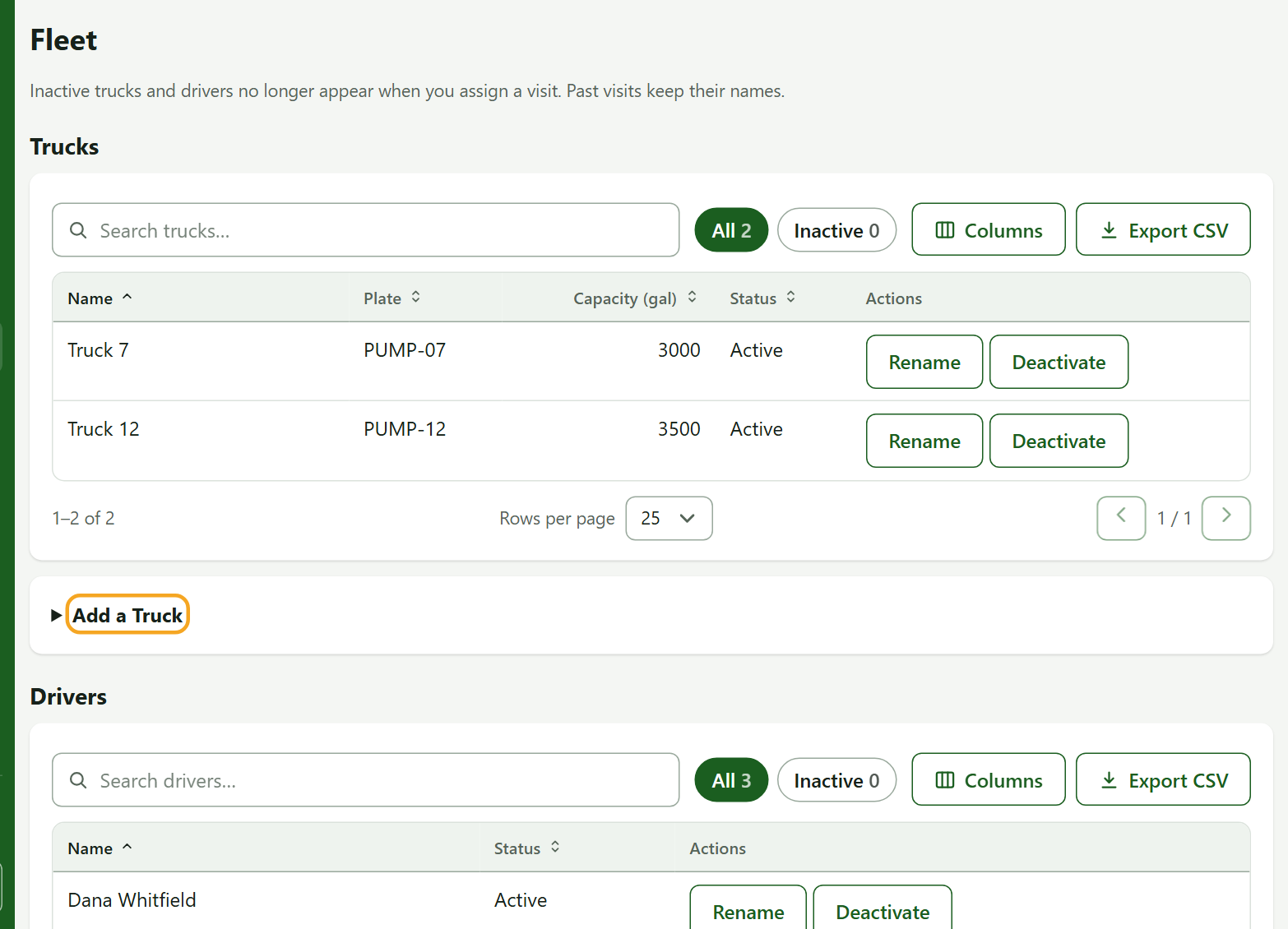
Why this matters: Your TrapProof bill is per truck per month, based on active trucks (never fewer than one). Deactivate a truck you no longer run and it stops counting. Past visits keep its name.
2. Add Your Drivers
- On the same page, scroll to Add a Driver and enter the driver's name.
- Use Rename to fix a spelling and Deactivate when someone leaves.
Tip: A driver here is a name you can assign to a visit. To let a person sign in on their phone, invite them on the Team page (next step).
3. Invite Your People
- Open Team.
- Under Invite Someone, type the person's email address.
- Tick Can invite and manage other people in this organization only if they should be an administrator.
- Press Send Invitation. They get an email with a link that works once and expires after 7 days.
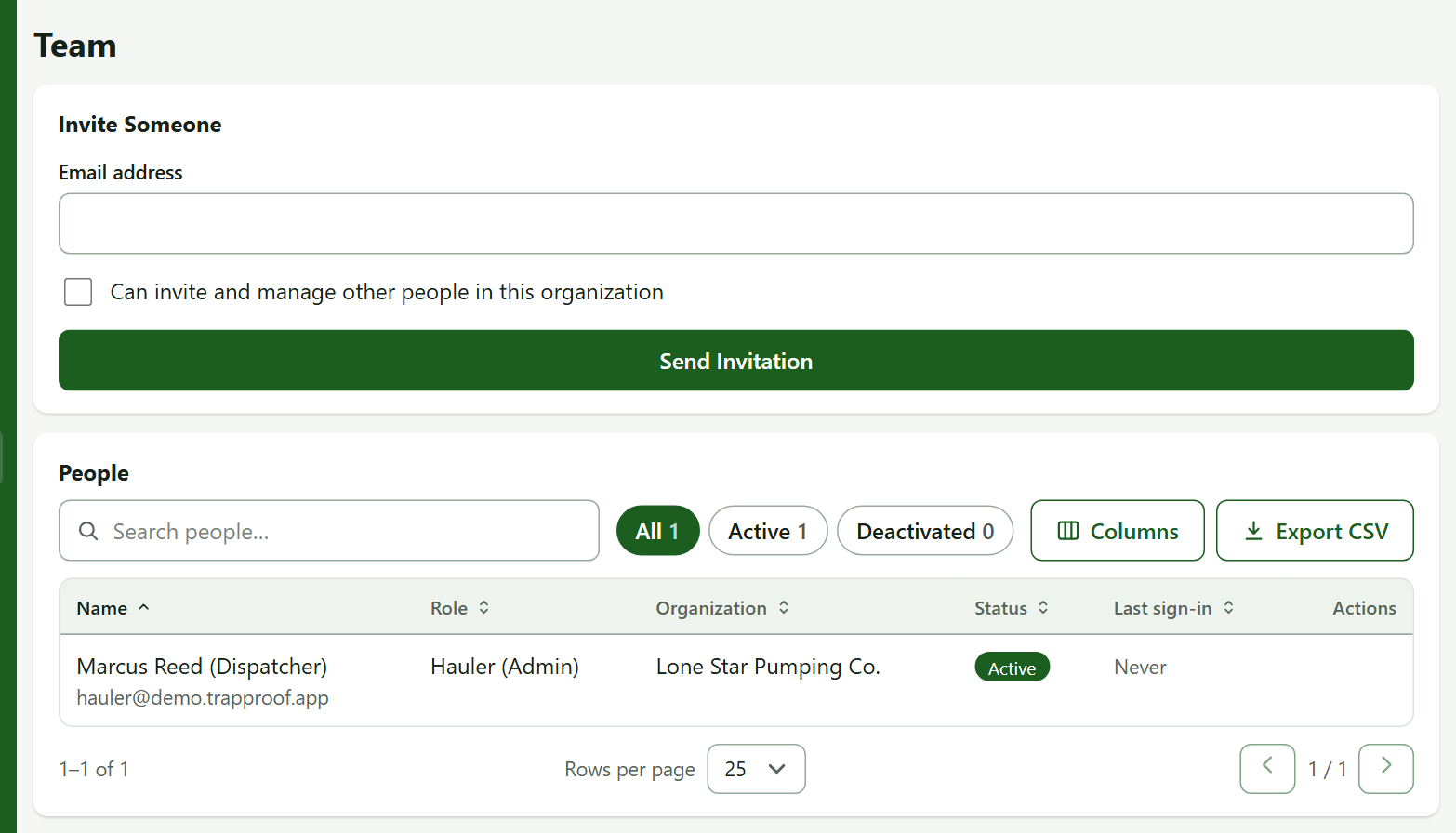
When they open the link they choose a password and are signed in. To remove someone later, press Deactivate next to their name: they are signed out within about a minute.
Administrators and everyone else
| Can do | Administrator | Other hauler users |
|---|---|---|
| See the schedule, book visits, complete manifests | Yes | Yes |
| Fleet, Cities, Invoicing, Billing, Team | Yes | No |
| Answer a new customer request | Yes | See it, cannot answer |
4. Ask a City to Approve You
- Open Cities.
- Press Ask to Join a City, type at least 2 letters of the city's name, and choose it.
- The city's administrators are emailed. The city shows in your list as waiting until they approve.
- If a city has already invited you, its row shows Needs Your Answer. Press Accept to join its program, or Decline.
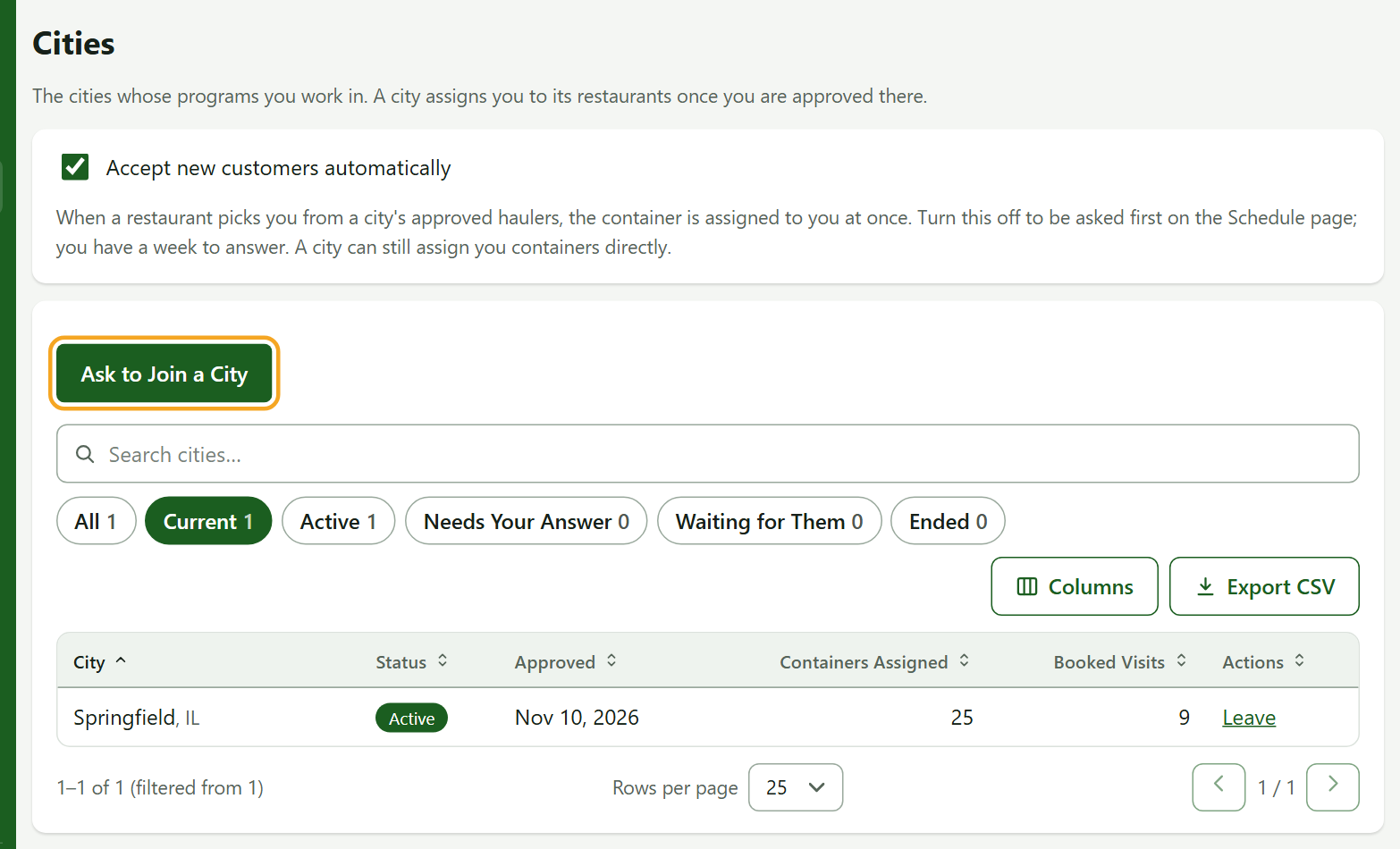
Once a row says Active, the city can assign you restaurants.
5. Choose How New Customers Reach You
Restaurants may pick a hauler from the city's approved list. On the Cities page, the checkbox Accept new customers automatically decides what happens:
- Ticked: the container is assigned to you at once.
- Unticked: you are asked first. The request appears on your Schedule page under New Customer Requests. You can Accept Customer, or Decline with a reason the restaurant and city will read. If nobody answers within 7 days it expires.
A city can still assign you a container directly whichever you choose.
Practice
- Add a truck called "Training Truck" and a driver called "Training Driver".
- Check that both show Active, then Deactivate both.
- Open Cities and confirm Springfield, IL shows Active.
You did it right if the inactive truck and driver no longer count in your lists' Active filters.
Quick Reference
| To do this | Go to | Remember |
|---|---|---|
| Add or retire a truck or driver | Fleet | Billing counts active trucks |
| Invite or deactivate a person | Team | Invites expire after 7 days |
| Join a city's program | Cities, Ask to Join a City | The city must approve you |
| Take new customers automatically | Cities checkbox | Off means you are asked first |
When Something Goes Wrong
| What you see | Why | What to do |
|---|---|---|
| No Fleet, Cities or Team in the menu | You are not an administrator | Ask an administrator at your company |
| A message that your account is read-only when adding a truck | Billing is past due or the trial has ended | Open Billing and fix the payment |
| The invited person says the link does not work | It was used or expired | Send a new invitation; the newest one replaces the old |