 TrapProof Training
All guides › Platform Operators
Setting Up Haulers, Cities and Restaurants as the Platform Operator
What You Will Learn
By the end you will be able to:
- approve or decline requests for new accounts,
- create haulers, cities, restaurants and containers directly,
- invite the first person at each organization,
- find and support people from the Team page.
Before You Start
- Sign in as a platform administrator. In the demo choose Admin.
- The platform administrator sees no manifests or compliance data. That is by design: you set things up and support people, you do not read their records.
How It Fits Together
Nothing exists until it is created. Cities and haulers now run their own side: a city approves haulers and assigns containers, a hauler joins cities. Your job is the start: creating the first organizations and approving people who ask for an account.
Step by Step
1. Review Account Requests
- Open Organizations, then the Requests tab.
- Each request shows who asked, for which kind of organization.
- Press Approve to create the hauler or city and email the requester an invitation as its administrator (single use, 7 days). A new hauler starts on a card-billing trial.
- Press Decline to email them, with an optional note. Nothing is created until you approve.
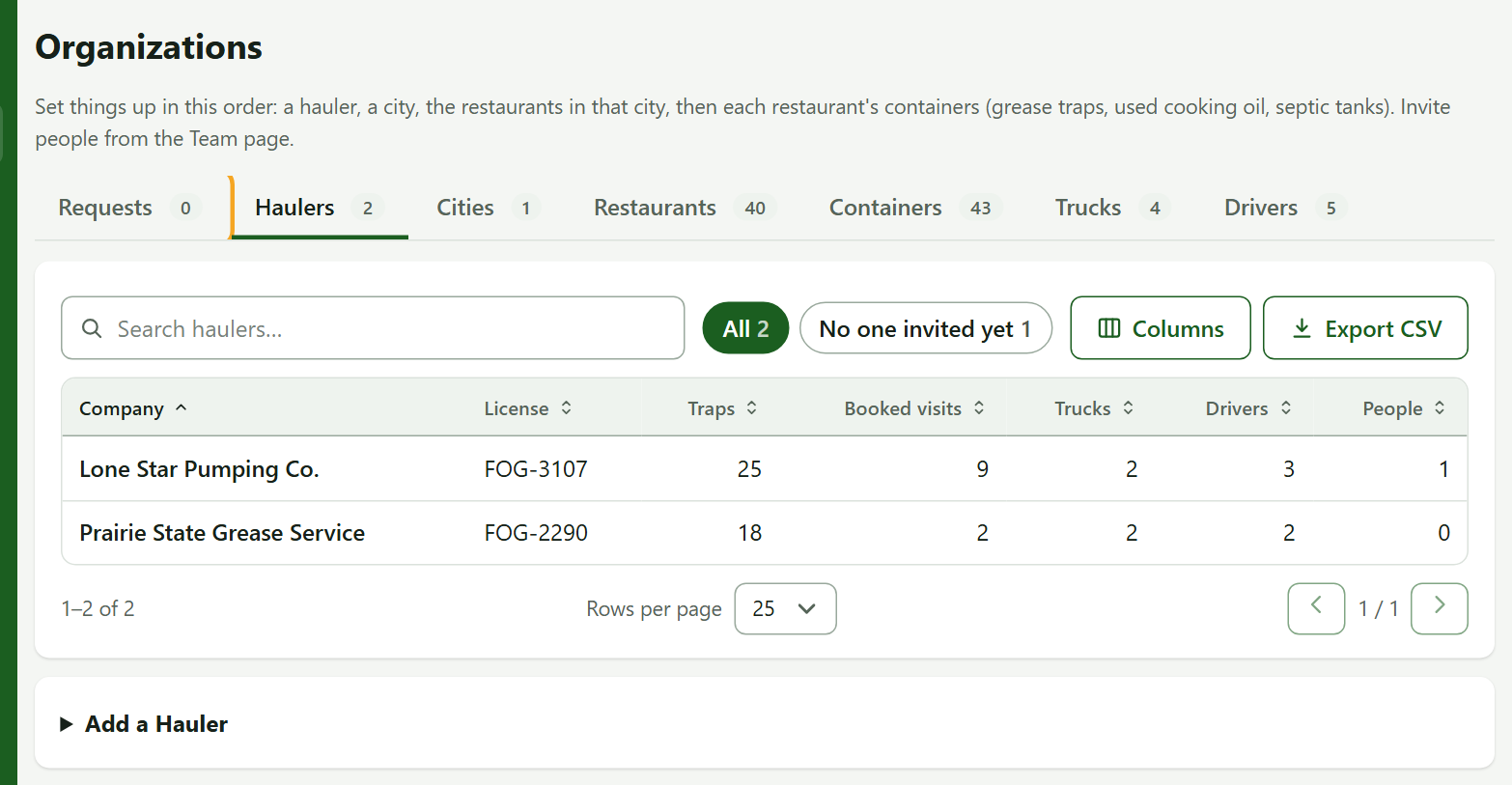
2. Create Organizations Directly
Set things up in this order: a hauler, a city, the restaurants in that city, then each restaurant's containers. Use the Add form under each tab (Haulers, Cities, Restaurants, Containers). Assigning a hauler to a container yourself also creates the approval between that hauler and the city.
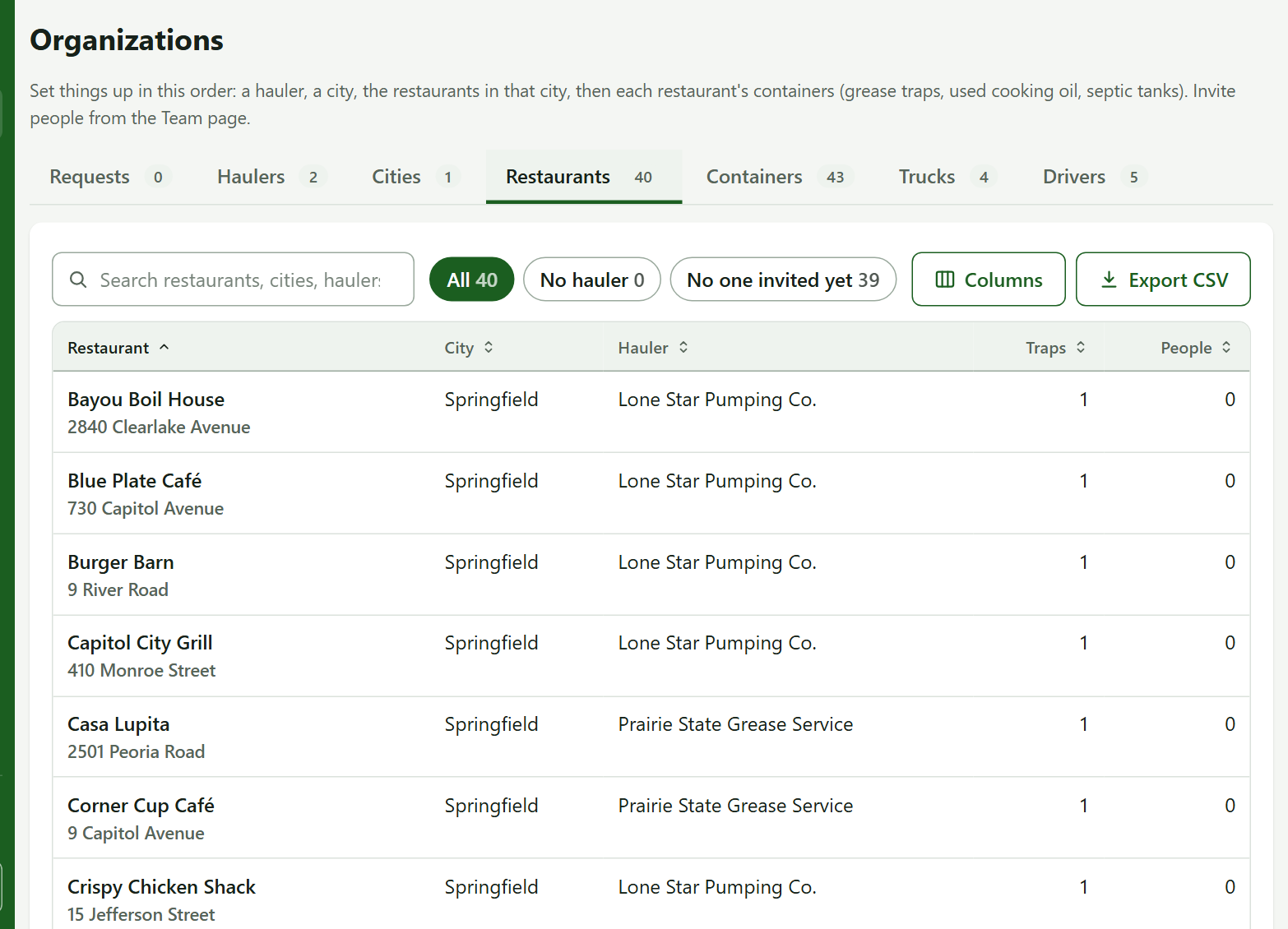
3. Look at One Organization
Press any hauler, city or restaurant to open its page: its people, pending invitations, and its trucks, drivers, containers or restaurants. For a hauler you also see its billing state and how many visits are booked, never the visits themselves.
4. Invite and Support People
Open Team. Choose the role (Hauler, Restaurant, Municipal or Platform Admin), pick the organization, enter the email, and press Send Invitation. The list shows everyone with created and last sign-in dates. Deactivate blocks a login and ends sessions within about a minute.
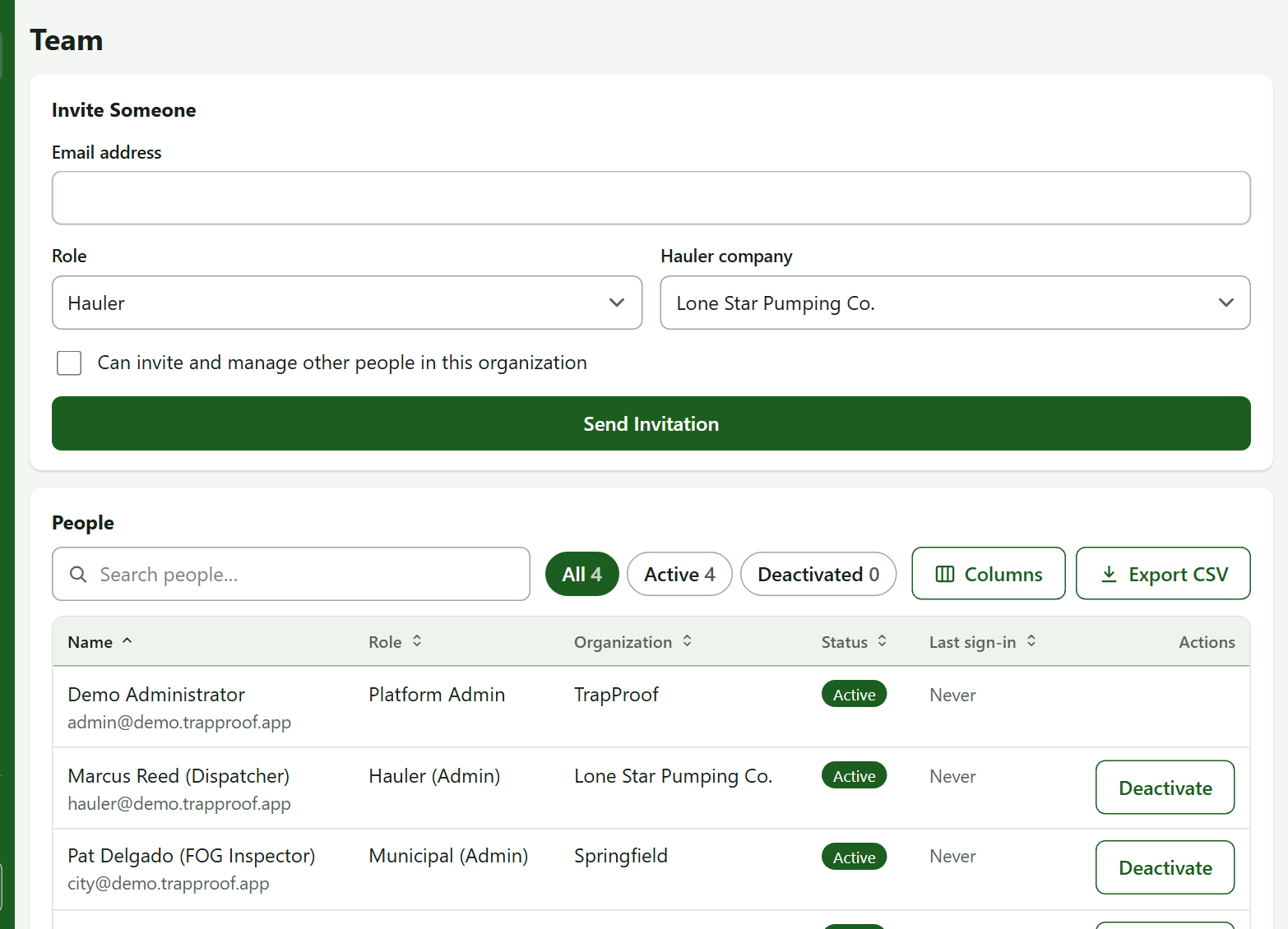
Practice
- Open Organizations and press the first hauler.
- Find its trucks and people.
You did it right if you can say how many drivers it has without seeing any visits.
Quick Reference
| To do this | Go to | Remember |
|---|---|---|
| Approve an account | Organizations, Requests | Creates it and invites the requester |
| Add an organization | Add form under each tab | Hauler, city, restaurant, container |
| Lock someone out | Team, Deactivate | Takes about a minute |
When Something Goes Wrong
| What you see | Why | What to do |
|---|---|---|
| An invitation link fails | Used or older than 7 days | Send a new one |
| Nothing under Requests | None pending, or a duplicate was dropped | Nothing to do |
What Next
Setting Up Your Fleet, Your Team and Your Cities