 TrapProof Training
All guides › Cities
Watching Compliance Across Your Program
What You Will Learn
By the end you will be able to:
- read the dashboard of compliant, due soon and overdue restaurants,
- find any restaurant and open its record,
- add or edit restaurants and containers (administrators),
- see who has pumped, when, and by which hauler.
Before You Start
- Sign in as a municipal user. In the demo, choose Municipal. You are Pat Delgado, FOG Inspector, in Springfield.
- Adding and editing restaurants needs a city administrator. Other city staff can read.
How It Fits Together
You never enter pumping data. Haulers sign manifests at the trap and the record appears here on its own. A restaurant is Compliant while its last pump-out plus its interval has not passed, Due soon in the last two weeks, and Overdue after. A restaurant with no containers is treated as overdue. Only the waste streams your city regulates count (grease traps by default).
Step by Step
1. Read the Dashboard
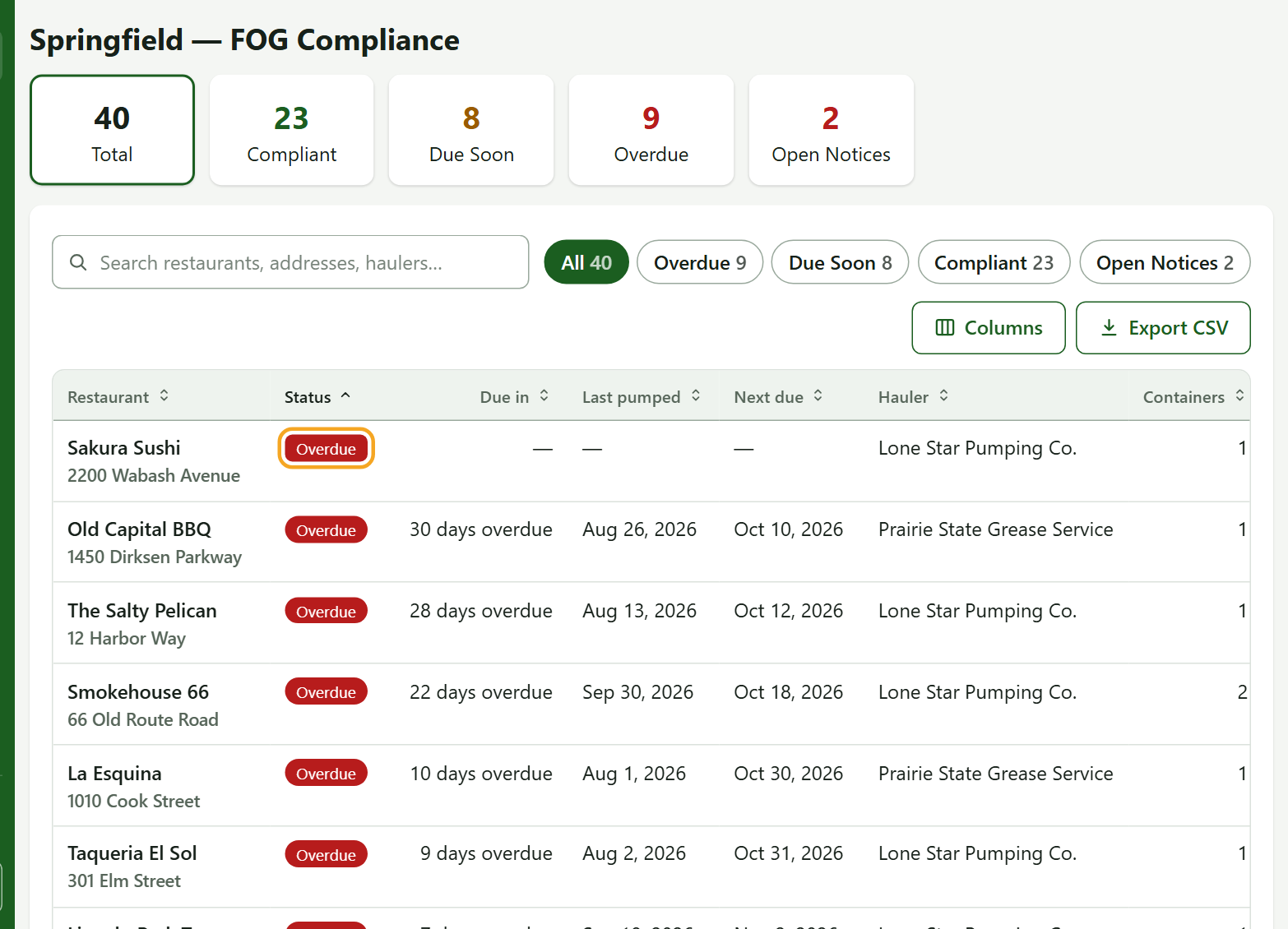
- Open Dashboard. The tiles show Total, Compliant, Due Soon, Overdue and Open Notices.
- Press a tile to filter the list below it to that group.
- Each row shows status, days until due or overdue, last pumped, next due, the hauler, the container count and open notices.
2. Find a Restaurant
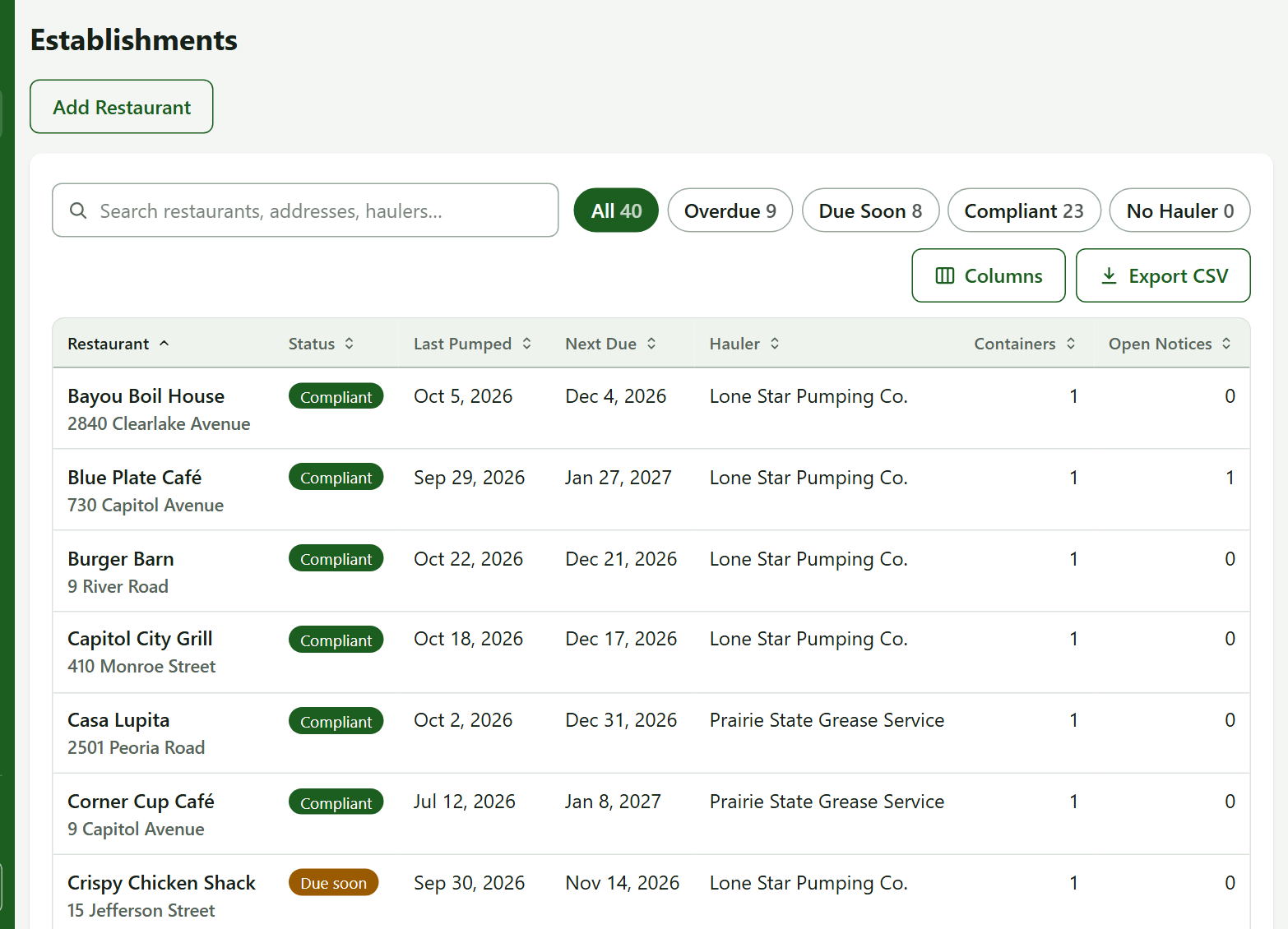
- Open Establishments. Search by name or address, or use the filters Overdue, Due Soon, Compliant and No Hauler.
- Press a restaurant's name to open its record: containers, pumping history with manifests, notices and inspections, and messages.
3. Add and Edit Restaurants (Administrators)
- On Establishments, press Add Restaurant, fill in name and address (and contact details if you have them), and save. The new record opens with the container form ready.
- On a record, use Edit Details to change the restaurant and Add Container for another trap, used cooking oil container or septic tank.
- A restaurant's name and address must be unique in your city. There is no delete, because a restaurant with a history must not vanish. Old signed manifests keep the name they were signed with.
4. Reach a Restaurant
On a record, the messages card lets you write a subject and body and press Send Message. It goes to the restaurant's users, or to its contact email if it has none. Notices go the same way. The record shows whether it was delivered.
Tip: If a restaurant has no account yet, press Invite Contact to Sign In on its record to invite its recorded contact email as the restaurant's administrator.
Practice
- Open the dashboard and press Overdue.
- Press the first restaurant to open its record.
- Find its hauler and its next due date.
You did it right if you can say who last pumped it and when its pumping fell due.
Quick Reference
| To do this | Go to | Remember |
|---|---|---|
| See who is overdue | Dashboard tile | Only regulated streams count |
| Open a record | Establishments, press the name | Read-only for non-administrators |
| Add a restaurant | Add Restaurant | Name plus address must be unique |
When Something Goes Wrong
| What you see | Why | What to do |
|---|---|---|
| A restaurant is missing | It is in another city | Ask the platform operator |
| A restaurant shows Overdue with no history | Never pumped | Assign it a hauler |
| No Add Restaurant button | You are not an administrator | Ask your administrator |