 TrapProof Training
All guides › Cities
Inspecting Restaurants and Issuing Notices of Violation
What You Will Learn
By the end you will be able to:
- see which restaurants have never been inspected or failed last time,
- record an inspection with the checklist,
- issue a notice of violation with a cure date and optional fine,
- close a notice and follow what the restaurant received.
Before You Start
- Sign in as a municipal user. In the demo choose Municipal. Only your own city's restaurants appear.
How It Fits Together
An inspection records what you saw on a date: four checklist items and a result of Passed or Failed. A failed inspection can carry notices. A notice of violation has a kind, what was found, a cure-by date and an optional fine. You can also issue a notice with no inspection, for example for an overdue trap. The restaurant is emailed whenever you issue or close one.
Step by Step
1. Find Who to Inspect
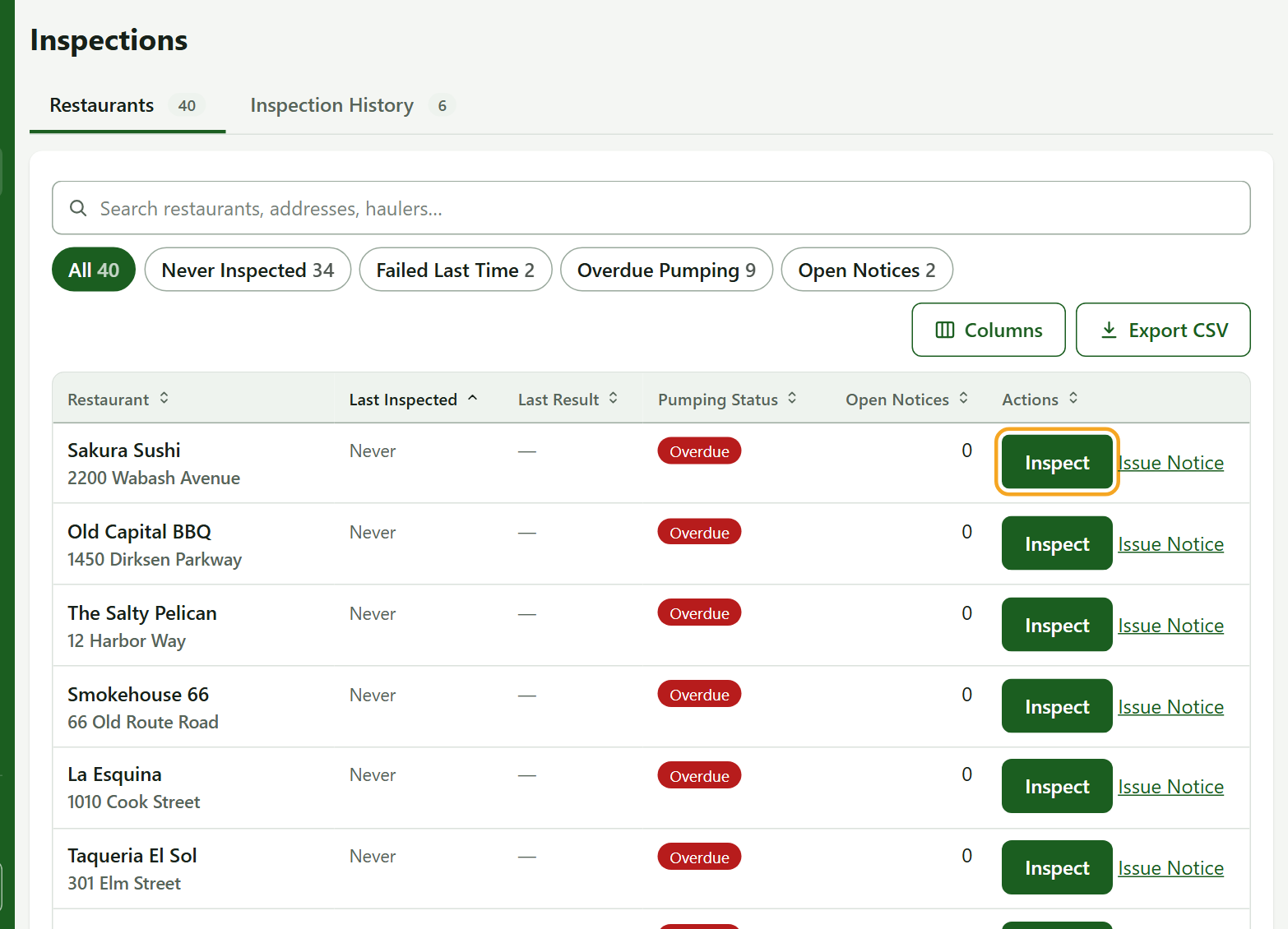
- Open Inspections. Each restaurant shows last inspected, last result, pumping status and open notices.
- Use the filters Never Inspected, Failed Last Time, Overdue Pumping and Open Notices. The oldest inspection comes first.
2. Record an Inspection
- On the restaurant's row press Inspect.
- Inspected On defaults to today. It cannot be in the future.
- Tick each checklist item that is in order: Pumping records on site, Trap accessible, Trap in good condition, No grease overflow.
- Choose Passed or Failed and add notes.
- If it failed, press Add Notice of Violation to attach up to ten notices. A passed inspection cannot carry a problem or a notice.
- Press Record Inspection.
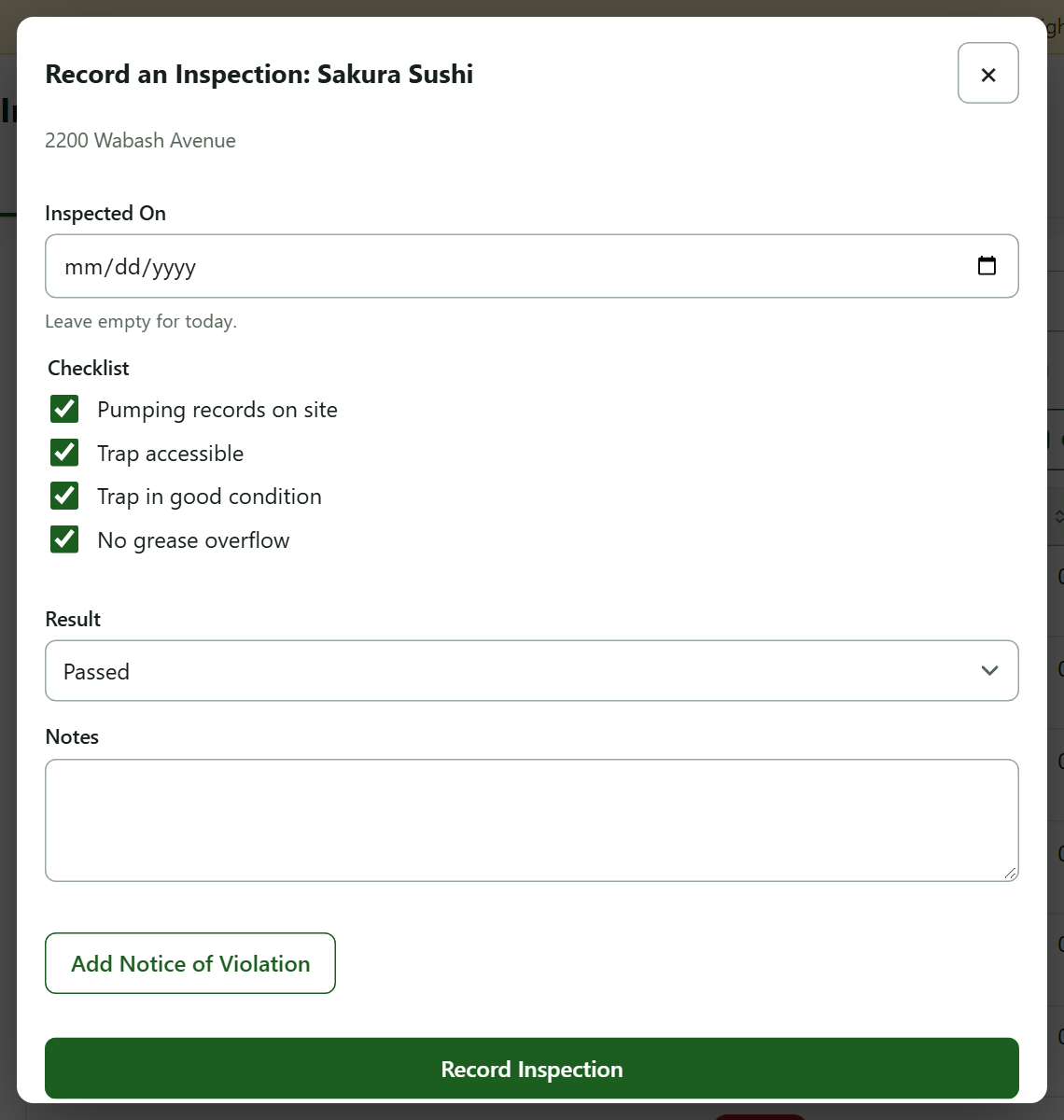
The dialog does not close when you click outside it, so a half-filled form is not lost. Press Cancel to leave.
3. Issue a Notice on Its Own
- On the row press Issue Notice.
- Choose the Violation kind, such as Grease trap not pumped on schedule.
- Correct By defaults to 14 days from today (at most a year).
- Describe What Was Found. The Fine is optional and can include cents.
- Press Issue Notice. The restaurant is emailed. If it has no account but a contact email, that address gets the full notice.
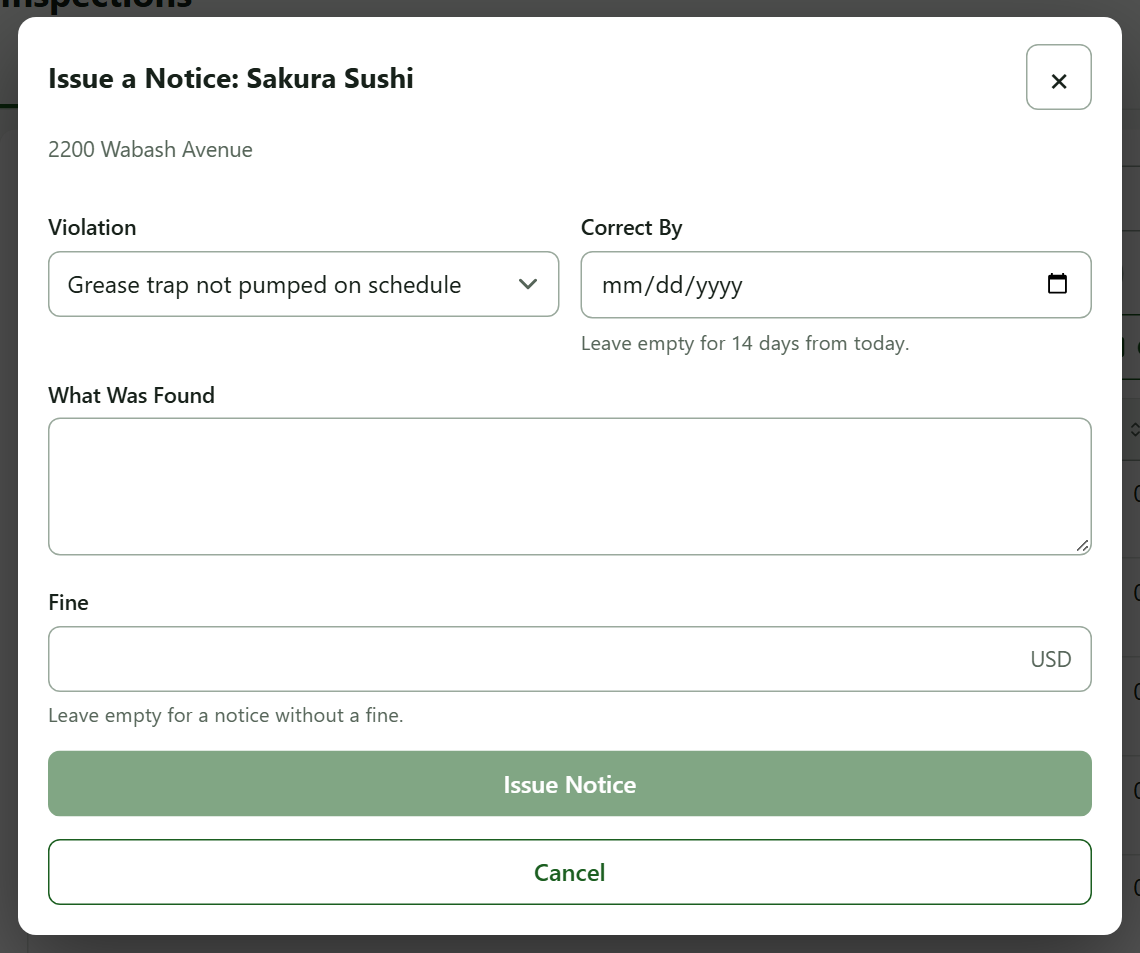
TrapProof tells you whether it was emailed.
4. Follow and Close Notices
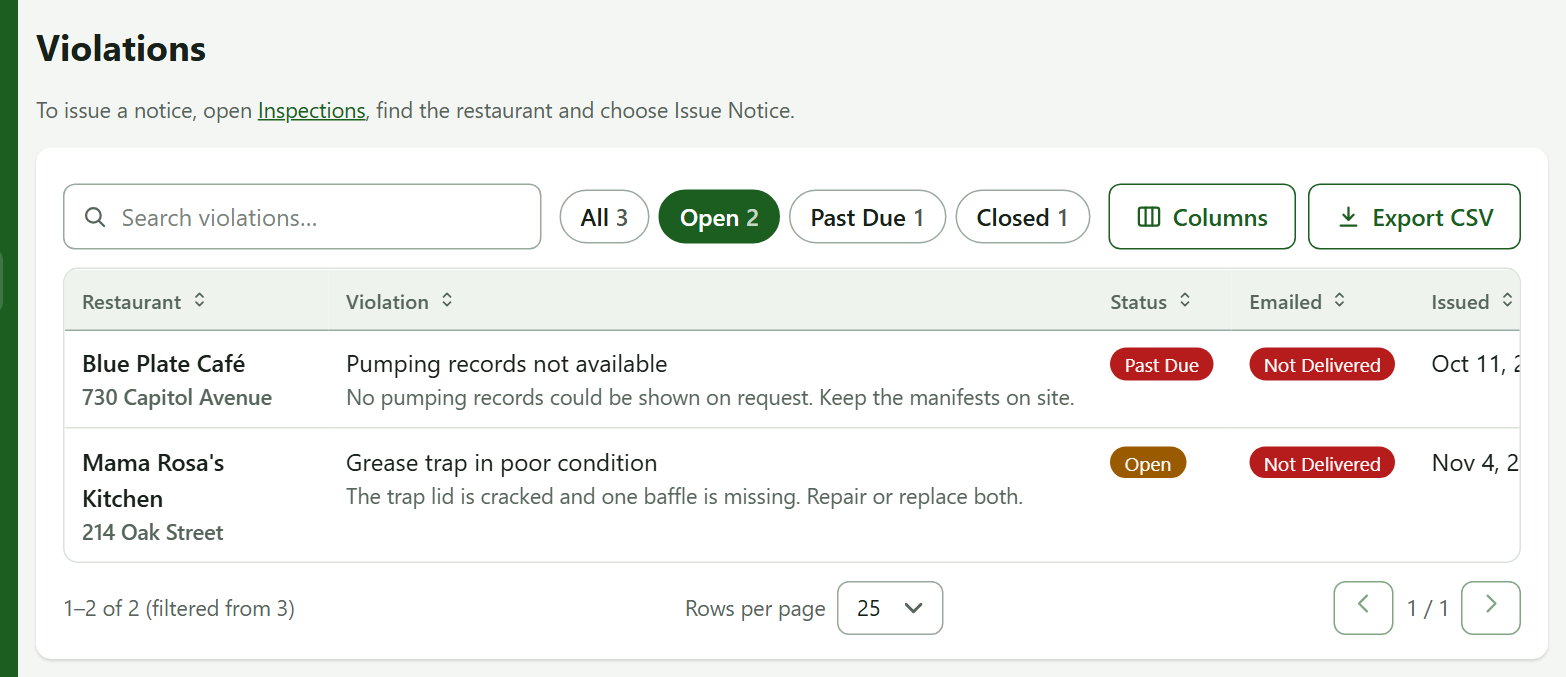
- Open Violations to see every notice with its status, cure date and whether the email was delivered. An Open notice past its date shows as past due.
- Press Resolve when the problem is fixed, or Waive (you must give a reason). Closing is final.
- Press Fine Paid to record that a fine has been paid.
- The notice letter is a PDF you and the restaurant can download.
Practice
- Press Inspect on a restaurant, tick everything, choose Passed and record it.
- Open Inspection History and find your entry.
You did it right if the restaurant's Last Result shows Passed with today's date.
Quick Reference
| To do this | Go to | Remember |
|---|---|---|
| Record an inspection | Inspections, Inspect | Passed cannot carry a notice |
| Issue a notice alone | Issue Notice | Cure date defaults to 14 days |
| Close a notice | Violations | Waiving needs a reason |
When Something Goes Wrong
| What you see | Why | What to do |
|---|---|---|
| Delivery shows Not delivered | No account and no contact email | Add a contact to the restaurant |
| You cannot save | A required field is empty, or the date is in the future | Fix the field shown |
| A notice cannot be changed | It is already closed | Issue a new one |