 TrapProof Training
All guides › Restaurants
Your Compliance Record, Notices and Trap Access Hours
What You Will Learn
By the end you will be able to:
- read your trap's status, last pump date and next due date,
- show an inspector your pumping history,
- read and answer a notice of violation,
- tell your hauler when the trap can be reached,
- find your hauler's invoices.
Before You Start
- Your hauler or your city invites you by email. Open the link, choose a password and you are signed in.
- In the demo, open demo.trapproof.app and choose Restaurant. You are Rosa Marino at Mama Rosa's Kitchen.
How It Fits Together
Every time your hauler pumps your trap, the driver signs a digital manifest with you at the trap. That manifest lands on your Compliance Record automatically, so there is no paper to lose. Your city sees the same record, which is what it checks at inspection.
Step by Step
1. Read Your Record
- After signing in you land on Compliance Record.
- At the top you see your restaurant, address and each trap with its size and how often it must be pumped.
- The status badge says Compliant, Due soon or Overdue. Below it: who serves the trap, when it was last pumped, when it is next due, and any visit that is booked.
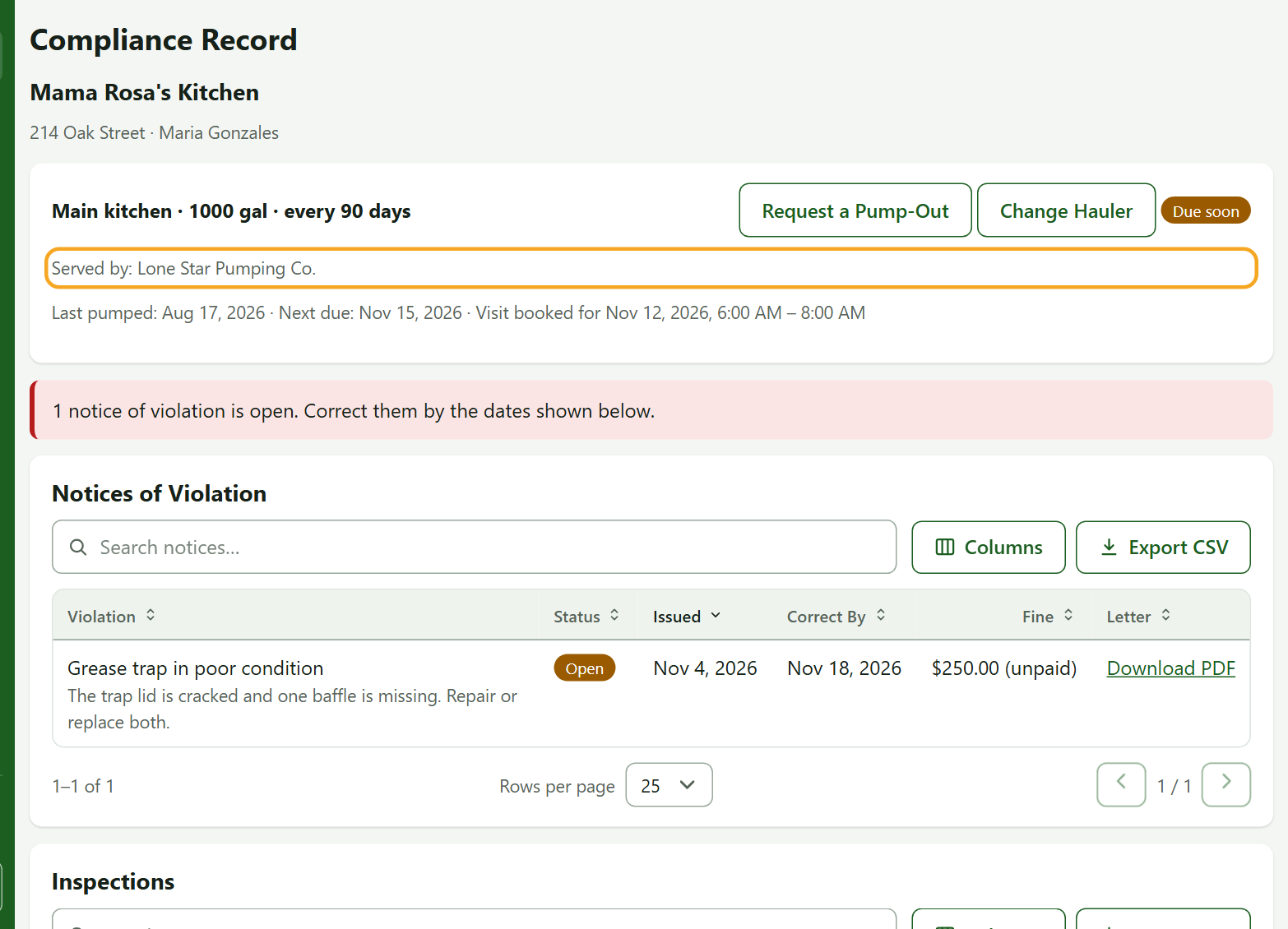
Why this matters: "Next due" counts from the last real pump-out, not a calendar date, because ordinances say "at least every N days".
2. Show an Inspector Your History
- Scroll to the pumping history grid. It lists every pump-out with its date, gallons and hauler.
- Open any manifest to see the photos and signature. The manifest page has a fingerprint and a QR code, so anyone with a copy can check it was not changed.
- Use Export CSV to take the list with you.
3. Read Your Notices of Violation
If a city inspector issues a notice, you get an email and it appears under Notices of Violation with its status, issue date, Correct By date and any fine. Download PDF gives you the letter.
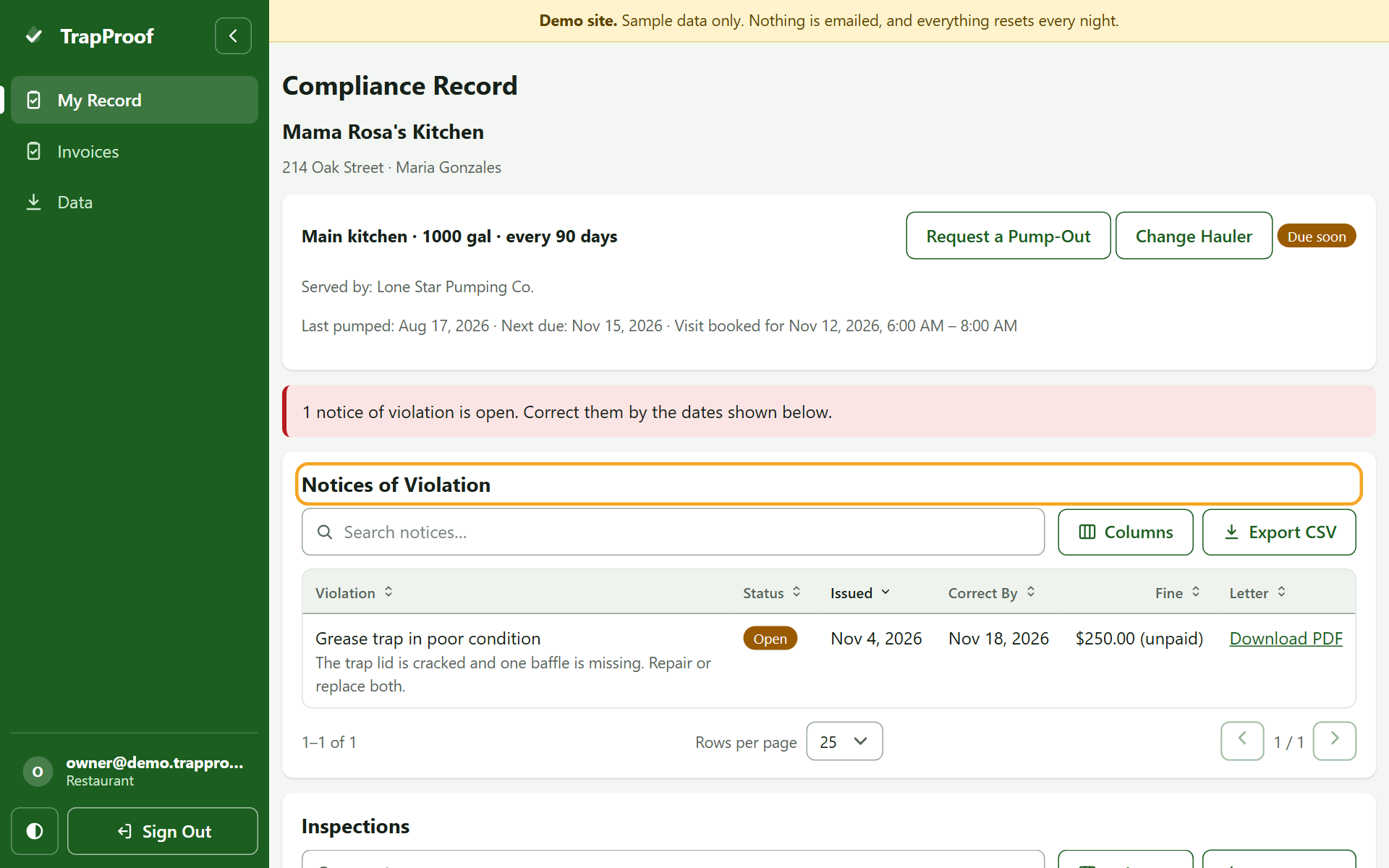
An open notice that passes its correct-by date shows as past due. You cannot close a notice yourself: fix the problem and tell the city, which marks it resolved.
4. Tell Your Hauler When the Trap Can Be Reached
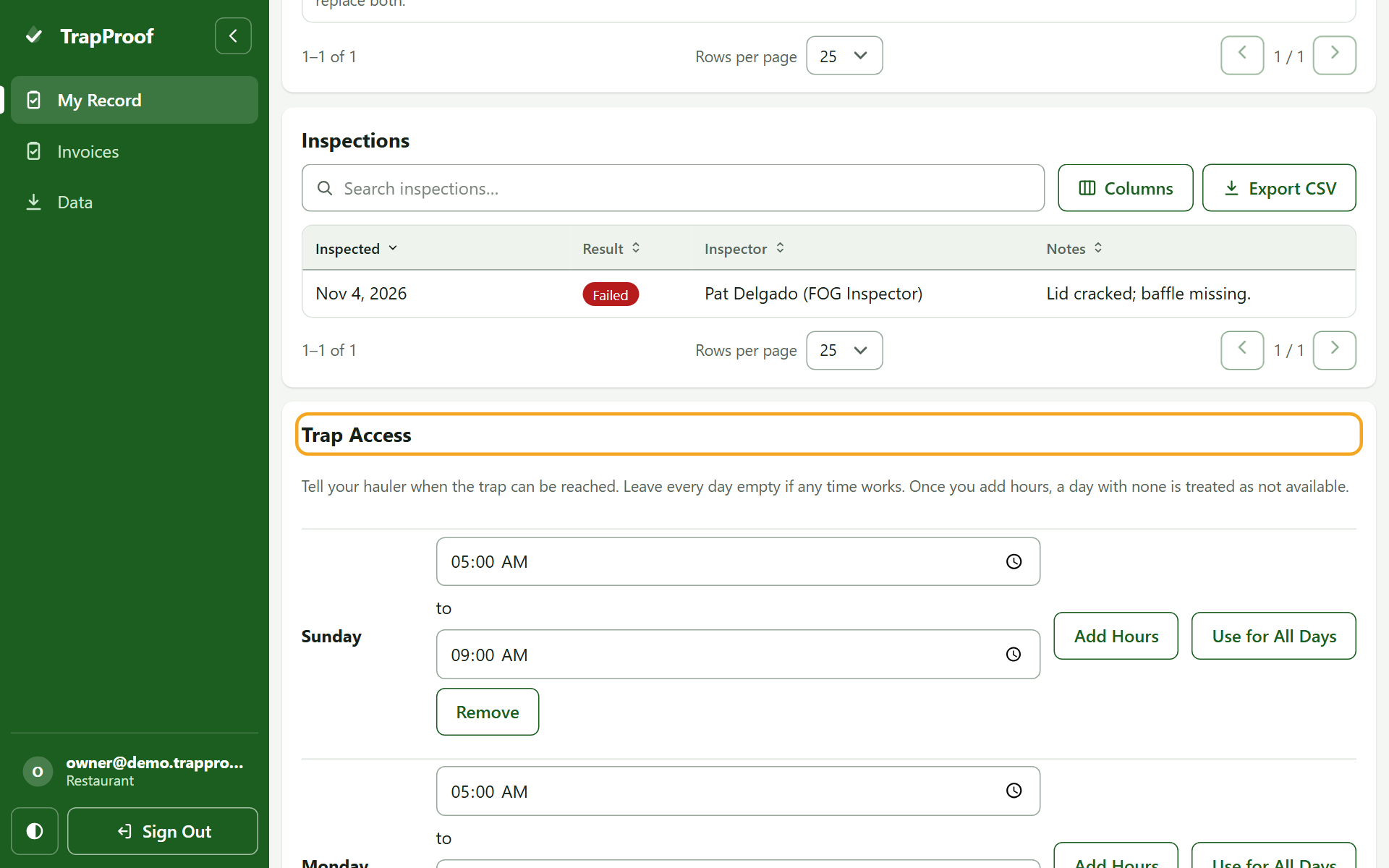
- Scroll to Trap Access.
- For each weekday that works, press Add Hours and set the times. You can add up to four ranges a day. Use for All Days copies a day's hours to the rest.
- Leave every day empty if any time works. Once you add any hours, a day with none counts as not available.
- Save. Your hauler sees a warning if it books outside these hours. It is advice, not a block.
5. See Invoices From Your Hauler
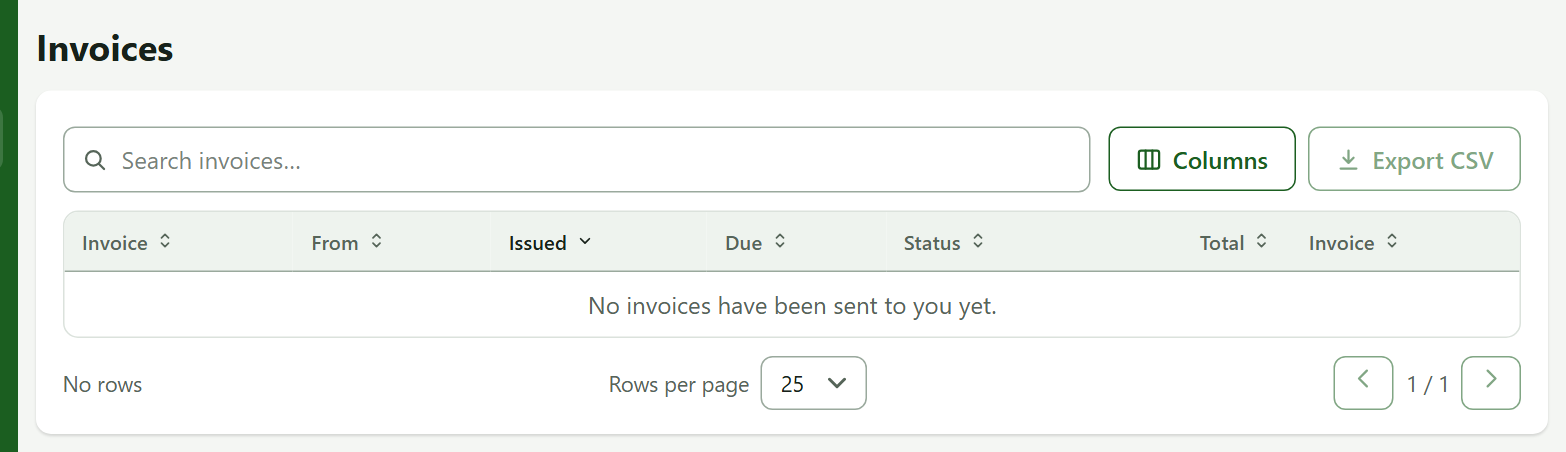
Open Invoices in the menu. Only invoices your hauler has sent you appear. Open one to read it or download the PDF.
Practice
- Open your record and find the next due date for the trap.
- Add Monday hours of 5:00 AM to 10:00 AM and save.
- Reload the page.
You did it right if Monday still shows your hours after the reload. Your hauler's schedule will now say "Available Mondays" on that trap's booking card.
Quick Reference
| To do this | Go to | Remember |
|---|---|---|
| Check status | Compliance Record | Counts from the last real pump |
| Download a notice letter | Notices of Violation, Download PDF | The city closes notices |
| Set access hours | Trap Access | No hours means any time |
| Read invoices | Invoices | Only ones sent to you |
When Something Goes Wrong
| What you see | Why | What to do |
|---|---|---|
| No pump-out shows after service | The driver has not signed the manifest yet | Ask your hauler |
| Overdue on a trap just pumped | The manifest was not completed | Ask your hauler to finish it |
| No emails | Reminders are switched off for your account | Open Account and turn them on. Notices always arrive |