 TrapProof Training
All guides › Haulers
Exporting Your Pumping Records
What You Will Learn
By the end you will be able to:
- download your signed pump-outs as a spreadsheet,
- understand what each row proves.
Before You Start
- Sign in as any hauler user and open Data in the menu. In the demo, choose Hauler.
How It Fits Together
The export lists every signed pump-out you can already open, one row each: manifest number, date, restaurant, address, city, trap, gallons, your company and license, the signer, the GPS stamp, the fingerprint, and a public check link. The date is the city's calendar date, not a time-zone-shifted one.
Step by Step
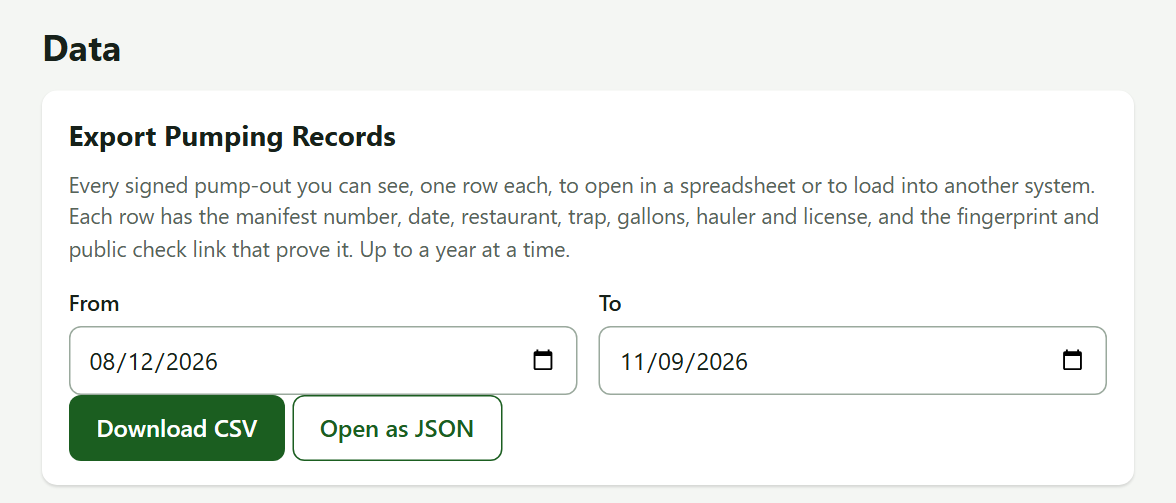
1. Choose the Dates
- Open Data.
- Set From and To. The default is the last 90 days. You can ask for up to a year at a time, and up to 20,000 rows.
2. Download
- Press Download CSV for a file Excel opens correctly, or Open as JSON to read it in a browser or hand it to another system.
- Open the file. Every row has a public verify link: anyone can open it to check the pump-out without signing in.
Tip: A restaurant named like a formula, such as "=SUM", is exported safely: the cell is prefixed so a spreadsheet will not run it.
Practice
- Download the CSV for the last 90 days.
- Find one row and copy its public check link into your browser.
You did it right if the page confirms the manifest and shows the headline facts (never photos or the signature).
Quick Reference
| To do this | Go to | Remember |
|---|---|---|
| Export pump-outs | Data, Download CSV | At most 366 days |
| Check a manifest | The public link in a row | Works without signing in |
When Something Goes Wrong
| What you see | Why | What to do |
|---|---|---|
| An error about the date range | More than a year, or To before From | Narrow the dates |
| An empty file | No signed pump-outs in the range | Widen the dates |