 TrapProof Training
All guides › Haulers
Invoicing Your Restaurants
What You Will Learn
By the end you will be able to:
- set your prices once,
- turn completed pump-outs into invoices, one per restaurant,
- send an invoice, mark it paid or void it,
- export invoices for QuickBooks.
Before You Start
- Sign in as a hauler administrator and open Invoicing in the menu.
- This is your invoice to your restaurants. It is a record-keeping tool: TrapProof does not take payments. (What TrapProof charges you per truck is separate and lives under Billing.)
How It Fits Together
Every completed pump-out is a line you can bill. A pump-out costs a flat fee plus the rate per gallon times the gallons pumped, rounded to the cent. One trap can have its own flat fee that replaces yours. A pump-out with no price cannot be invoiced, so set prices first.
Step by Step
1. Set Your Prices
- Open Invoicing, then the Prices tab.
- Fill in Flat Fee per Pump-Out and/or Rate per Gallon (for example 0.35).
- Set Sales Tax (0 if none) and Payment Terms in days.
- Check the Invoice Number Prefix. The page shows the next number, such as INV-1001. Numbers are never reused.
- Write an Invoice Footer with how to pay or where to mail a check.
- Press Save Prices.
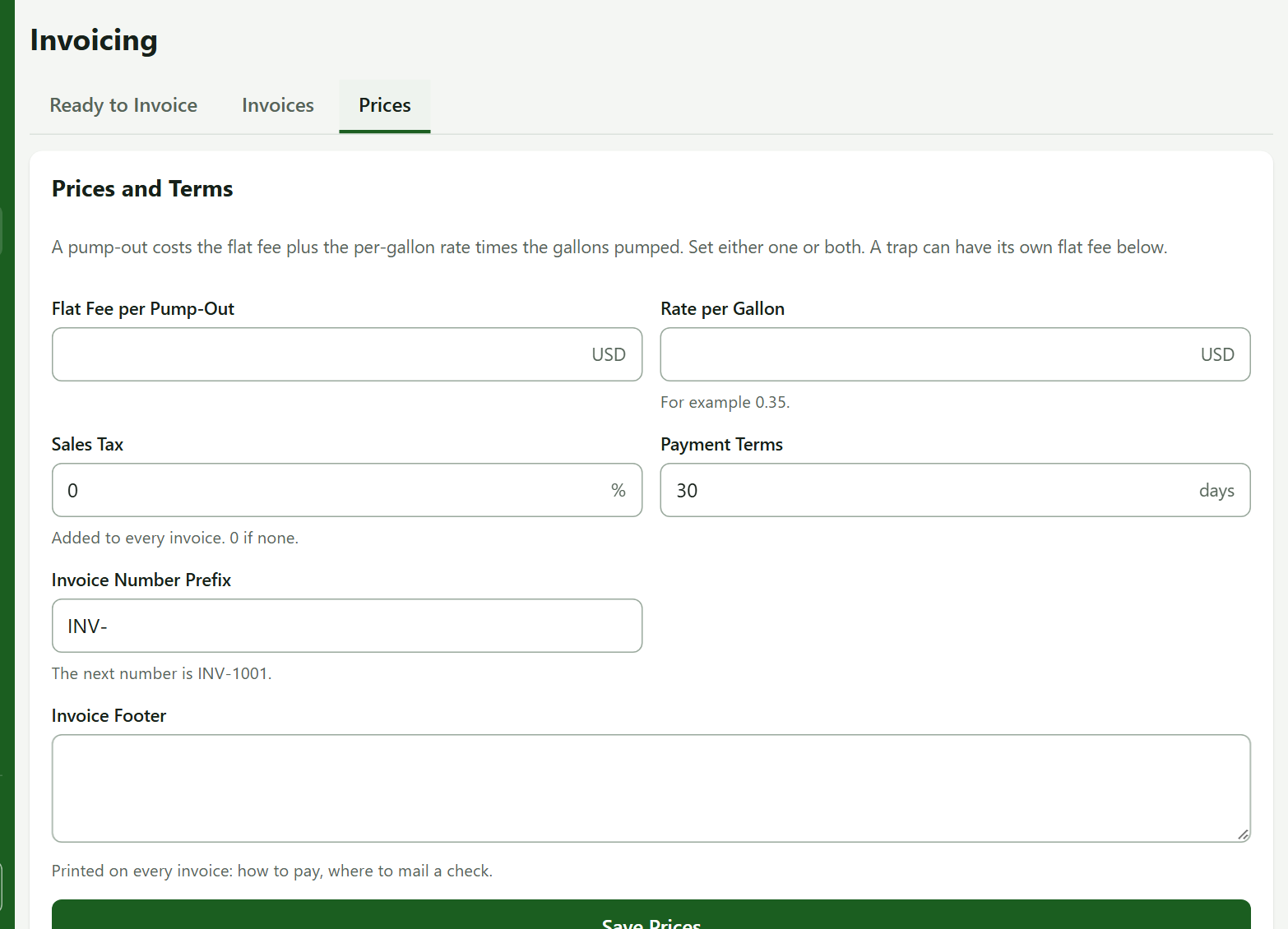
Watch out: The demo's prices are blank on purpose, so the first tab will warn "Some pump-outs have no price. Set Prices first." Fill in the prices and the warning goes away.
2. Create Invoices From What You Have Pumped
- Open Ready to Invoice. Pump-outs are grouped by restaurant.
- Each group shows its total on a Create Invoice button. A pump-out marked No price needs a price first.
- Press Create Invoice for one restaurant, or Create All Invoices to make one for every restaurant at once. A restaurant's listed pump-outs always go onto a single invoice.
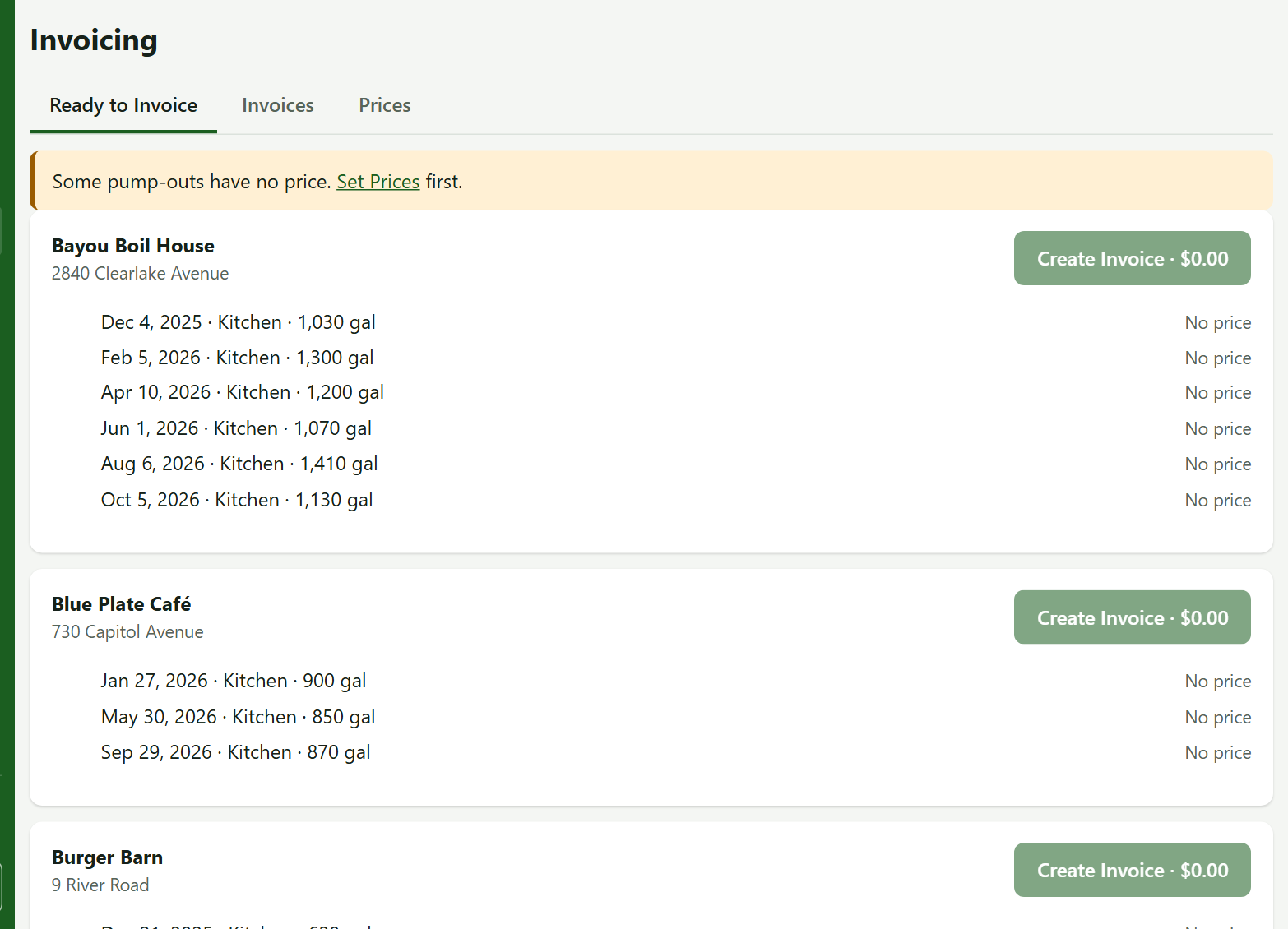
A pump-out can be on only one live invoice, so nothing is billed twice.
3. Send, Collect and Close
Open the Invoices tab.
- On the invoice's row, press Send. Every active user at that restaurant is emailed it. Sending again emails it again.
- When you are paid, press Mark Paid and enter the date. It cannot be in the future or before the issue date.
- To cancel one, press Void. Only open invoices can be voided, and its pump-outs return to Ready to Invoice.
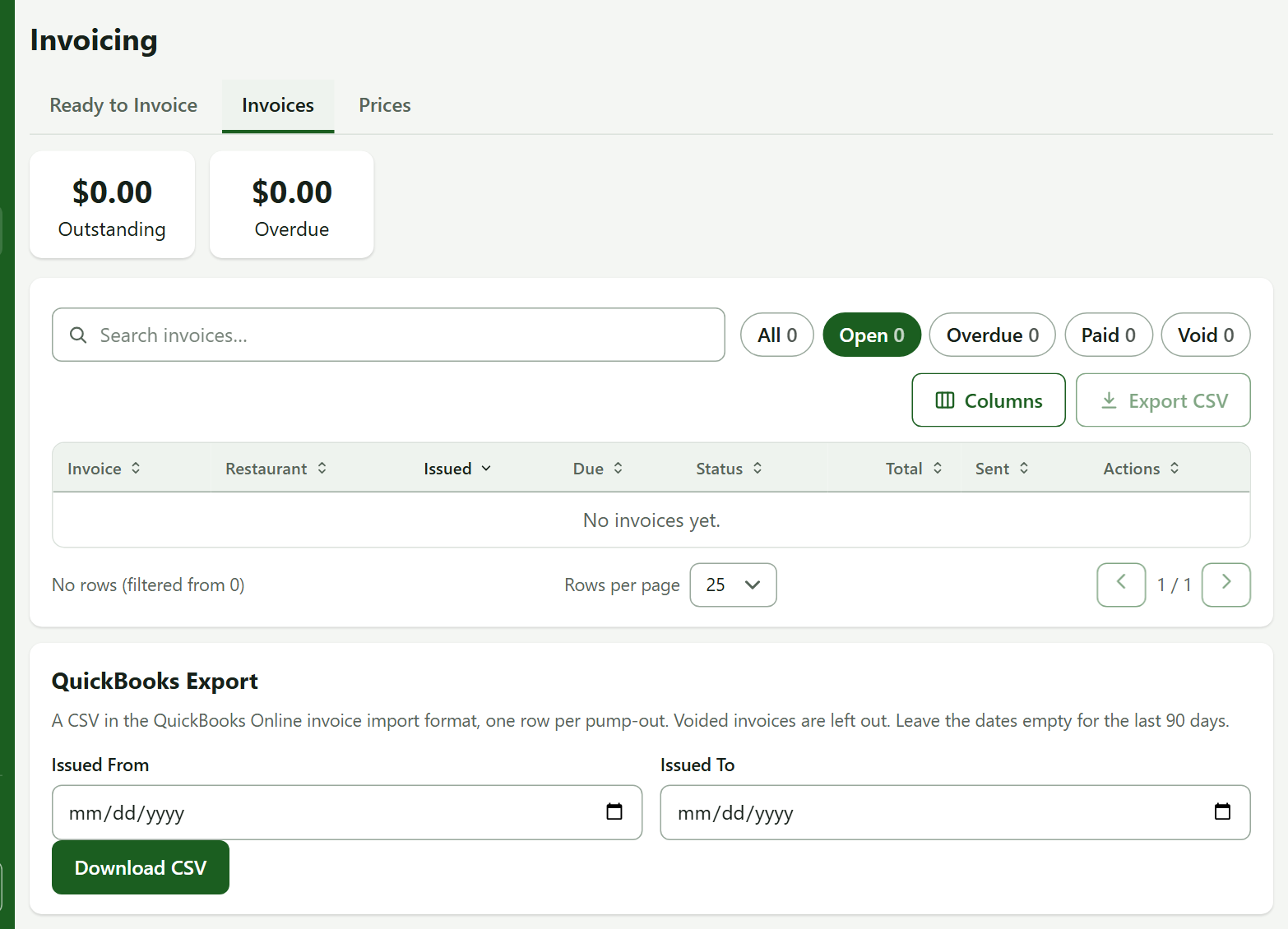
An invoice past its due date shows as overdue. TrapProof does not send reminders for you.
4. Give Your Accountant a File
At the bottom of the Invoices tab, the QuickBooks Export card downloads invoices in the layout QuickBooks Online imports (leave the dates empty for the last 90 days; voided invoices are left out). Each invoice row also has a PDF link. Check the column names on your first import, since this has not been tried against a live QuickBooks account.
What the Restaurant Sees
A restaurant sees only invoices you have sent and not voided. It can open the detail and download the PDF from its own Invoices page.
Practice
- On Prices, enter a flat fee of 150 and a rate of 0.25, and save.
- On Ready to Invoice, create an invoice for one restaurant.
- Send it, then mark it paid today.
You did it right if the invoice shows Paid on the Invoices tab.
Quick Reference
| To do this | Go to | Remember |
|---|---|---|
| Set prices | Prices | Per-trap fee replaces the flat fee |
| Bill a restaurant | Ready to Invoice | One invoice per restaurant |
| Undo an invoice | Invoices, Void | Open invoices only |
When Something Goes Wrong
| What you see | Why | What to do |
|---|---|---|
| No price on a pump-out | No flat fee or rate applies | Set prices, then reload |
| A restaurant says it cannot see the invoice | You have not pressed Send, or it was voided | Send it |
| Drivers cannot open Invoicing | Only administrators can | Use an administrator account |